
Contents
Groups.io
Reference for Group Owners and Moderators

Conventions used in this reference 1
Displaying the Settings page 4
Email Address Visibility in Archive 7
Spam control and moderation settings 7
Automatically Moderate Topics Older Than [n] Days 10
Automatically Lock Topics Older Than [n] Days 10
Allow Members to Download Archive 11
Message formatting settings 12
Settings for Groups.io features 13
Max Image Size in Databases 15
Max Image Size on Wiki Pages Images 17
Setting default subscription options for group members 18
Changing the home page image and group icon 20
Creating, editing, or deleting member notices 21
Pending Subscription notice 24
Rejected Subscription notice 25
Inviting people to join a group 25
Sending invitations to join the group 26
Inviting more than 20 people at a time 26
Tracking, resending, or canceling invitations 26
Approving or rejecting pending members by email 29
Approving, rejecting, or claiming pending members on the group's website 29
Approving, rejecting, or claiming one pending member 29
Approving, rejecting, or claiming multiple pending members 29
Adding moderator notes about individual members 29
Moderating individual members 30
Removing an individual member 30
Removing a large number of members (bulk remove) 31
Banning and unbanning members 31
Viewing a list of banned members 32
Checking for bouncing members 32
Reviewing members who were removed because of reported spam 33
Managing moderators and additional owners 34
Making a member an owner or moderator 34
Changing an owner or moderator back to a regular member 35
Managing group topics and messages 35
Approving, rejecting, or deleting pending messages by email 36
Approving, editing and claiming, rejecting, or deleting pending messages on the group's website 36
Handling an individual pending message 36
Handling multiple pending messages at the same time 36
Moderating topics, messages, and attachments 39
Editing the properties of topics in the archive 40
Editing the content of messages in the archive 40
Sending and receiving group owner email messages 41
Reviewing subscription options for receiving group owner email messages 42
Receiving and viewing messages sent to the owner email address 42
Sending messages from the owner email address 42
Setting automatic topic timeouts 44
Sending messages as special notices 44
Posting messages only on the website (not through email) 44
Unmoderating replies to topics 44
Overriding the group’s Reply To option 44
Controlling the use and creation of hashtags 45
Moderator hashtag permissions 45
Usage settings on individual hashtags 45
Viewing, creating, modifying, and deleting hashtags 45
Viewing the list of hashtags used in a group 45
Applying hashtags to topics 47
Applying hashtags to new topics 47
Applying hashtags to existing topics 48
How hashtags are displayed in the group archive 48
Pinning topics and wiki pages to the Topics page 49
Reviewing the group’s activity log 50
Displaying the activity log 50
Reviewing moderator activity 50
Reviewing activity related to other group features 51
Viewing and managing your group’s storage space 52
Allotted storage space by plan type 52
Items that count towards the storage limit 52
Items that do not count towards the storage limit 52
Viewing your group’s storage limit and current space usage 53
Managing your group’s storage space 53
Managing integrations with outside services 53
Adding an email integration 54
Modifying an email integration 54
Deleting an email integration 55
Modifying a feed integration 56
Deleting a feed integration 56
Adding a GitHub integration 56
Modifying a GitHub integration 57
Deleting a GitHub integration 57
Adding a Trello integration 57
Modifying a Trello integration 58
Deleting a Trello integration 58
Exporting or downloading your group’s data 59
Downloading your group’s member list 59
Exporting your group’s message archive and other group content 59
Upgrading a Basic group to a Premium or Enterprise group 60
Features available for Premium and Enterprise groups only 60
Additional member management options 63
Editing members’ email addresses 64
Confirming members who are marked as Not Confirmed 64
Viewing information about past members 64
Additional calendar options 65
Requesting and tracking RSVPs to calendar events 65
Automatically sending event invitations to new group members and event cancellations to departing group members 65
Sending calendar event summaries to the group 65
Automatic addition of events from outside calendar invitations 66
Taking donations and reviewing payment activity 66
Setting up a Stripe account 67
Creating a donation request 67
Locking and unlocking groups and subgroups 68
Banning domains from the group 68
Including map view in database tables 68
Features available for Enterprise groups only 69
Setting up a custom domain or subdomain 70
Setting up a custom subdomain 70
Adding a custom logo and custom email header and footer graphics 70
Customizing the home page displayed to users who are not logged in 71
Customizing Enterprise group settings 71
Displaying the Enterprise Settings page 71
Standard group email addresses 73
API access and documentation 74
Resources for help and support 74
Submitting suggestions for new features or improvements 75
Introduction
Groups.io provides people who share common interests with an ad-free platform for communicating with each other through email groups and group websites.
Those who want to run a group in Groups.io can:
- Create an announcement-only, moderated, or restricted group.
- Customize member notices such as welcome, goodbye, and pending member messages as well as monthly reminders and guidelines.
- Designate multiple owners and moderators using Groups.io’s full permissions system.
- Monitor the group through the activity log, and track email delivery to group members.
- Approve messages from moderated members either through the group’s website or by email.
- Automatically moderate or lock individual group topics after a set number of days.
- Set up hashtags to control and organize messages in the group’s archive.
- Create a wiki for storing group knowledge.
- Control access to and use of the group’s web-based features:
- Calendar
- Chat rooms
- Files section
- Databases
- Photos section
- Polls
For more information about the features and benefits of Groups.io, see the Features page on the Groups.io website.
Groups.io provides three levels of plans: a free Basic level and two paid levels, Premium and Enterprise. See the Plans and Pricing page on the Groups.io website for a feature comparison and pricing information.
Conventions used in this reference
User interface
All the step-by-step instructions in this reference assume you are using a web browser on a computer, not on a mobile device. Most of the instructions also assume that you are logged in to your Groups.io account.
Variable text
Text that is variable is enclosed in square brackets.
Examples:
- Automatically Moderate Topics Older Than [n] Days
In this example, [n] represents the actual number of days that you would enter for this setting. - “The following message was included by [your name]”
In this example, [your name] represents the display name you set for yourself in the group. - [groupname]+owner@groups.io
In this example, [groupname] represents the actual name of your group.
Admin menu notation
Angle brackets ( > ) are used as shortcuts to indicate the sequence of selecting items from the Admin entry in the left navigation menu on the group’s website, then from its submenu, then on the resulting page.
Examples:
- Select Admin > Settings > Member Notices.
- Go to Admin > Activity > Moderator Activity and select an action from the Actions list.
Terminology
See the Groups.io Glossary for a list of common terms used in Groups.io and their definitions.
Creating a Basic group
- Log in to your Groups.io account.
Note: If you do not have a Groups.io account (that is, your email address is not registered with Groups.io), create a Groups.io account or register with Groups.io through Facebook or Google. - After you are logged into Groups.io, click the Find or Create a Group link at the top of the page.
- On the next page, click the Create A Group button on the left.
- When the Create A Group page appears, review the information at the top of the page. Ensure that you review the Terms of Service and the types of content and behavior that are not permitted by Groups.io.
- Complete the fields on the page:
- Group Email Address: Enter the name of your group, up to 34 characters long. This name will appear in the group’s email address and also in the URL of your group on the Groups.io website.
Note:
- The name cannot contain spaces, plus signs, slashes, periods, or underscores. (Hyphens are allowed.)
- It is possible to change this name later, but be aware that renaming an existing group has repercussions. (See Renaming groups.)
- Description: Enter a description of your group. This description will be displayed on your group’s home page.
Note: You can modify the description later, but at this stage, be as specific as possible to ensure that the Groups.io team will approve the group’s creation. - Visibility: This option controls whether your group and its message archive are visible to the general public or only to group members. Select the option you want to use for your group.
! Important: When you make a message archive private, you cannot change it later to be publicly viewable. The “private messages” setting is not reversible. Therefore, at this stage, you should be certain about what visibility you want your message archive to have.
Option | Description |
Group listed in directory, publicly viewable messages | The group will be listed in the public directory of groups on Groups.io, and the message archive will be able to be viewed by nonmembers as well as members. The contents of group messages also will be discoverable by web search engines. Example: GroupManagersForum |
Group not listed in directory, publicly viewable messages | The group will not be listed in the public directory of groups on Groups.io, but the message archive will be viewable to anyone—not just group members—who has the URL of the group. The contents of group messages also will be discoverable by web search engines. |
Group listed in directory, private messages | The group will be listed in the public directory of groups on Groups.io, but the message archive will be viewable only to group members. Also, message content will not be discoverable by web search engines. Example: You want prospective members to be able to find the group, but they must meet some criteria before they can join the group and view the message archive. ! Important: The “private messages” setting is not reversible. You can change whether the group is listed in the public directory of groups, but you cannot change private messages to be publicly viewable later. |
Group not listed in directory, private messages | The group will not be listed in the public directory of groups on Groups.io, and the message archive will be viewable only to group members. Also, message content will not be discoverable by web search engines. Example: You want an invitation-only group that is not open to the general public (such as for a specific organization or user community). ! Important: The “private messages” setting is not reversible. You can change whether the group is listed in the public directory of groups, but you cannot change private messages to be publicly viewable later. |
- Click the Create Group button located at the bottom of the page.
When your group is created successfully, you see the Promote page with a notice at the top that your group has been created along with some introductory information.
Now you can:
- Customize the settings for your group.
- Set default subscription options for group members (including the default timezone)
- Create some member notices that can be sent to members automatically for certain events (for example, you can customize the default welcome notice that is sent to new members when they join the group).
- Change the image that is displayed on the home page of your group’s website.
- Invite people to join the group.
Note: If you have a timezone set in your Groups.io account preferences, the new group will have that timezone by default. Otherwise, the default timezone is U.S./Canada Pacific Time (UTC-08:00). You can change the group’s default timezone when you set default subscription options for group members.
Customizing group settings
Displaying the Settings page
On your group’s left navigation menu, select Admin > Settings. The main Settings page appears.
The page contains sections for these categories of settings:
Saving setting changes
! Important: When you finish customizing settings on the Settings page, ensure that you scroll all the way to the bottom of the page and click the Update Group button. Your changes will not take effect until you click that button.
General settings
In the General section on the Settings page, you can customize these settings:
Group Title
Enter a short, descriptive title that will be displayed on the group’s home page in Groups.io along with the group’s email address. This title is also displayed in the public directory of groups if you opt to list your group there.
This field is optional, but it is good practice to provide a descriptive group title.
Tip: If you want to promote your group, use appropriate keywords in the group title so the group can be found easily in the public directory of groups.
Group Email Address
This field contains the email address you entered when you created the group. If you decide to change that email address—which also changes the group’s URL—make the change in this field.
Tip: The ideal time to change the group’s email address is as soon as possible after you create the group—before you create member notices, customize the message footer and other elements, and add members. If you decide to change the email address after a group is well established, additional considerations apply. See Renaming groups.
Group Description
In this field, which is optional, you can enter and format a description of the group that will appear on the group’s home page. If your group is listed in the public directory, the first few lines of this description will be included under the group’s name and title in the directory.
Tip: If you want to promote your group, use appropriate keywords in the first few lines of the description so the group can be found easily in the public directory of groups.
You can include text formatting and links in the description. To see all of the formatting tools, click the Show Advanced Toolbar “hamburger” icon on the right.

Website
If you want to list a website on your group’s home page at Groups.io, you can enter that website’s URL here. The URL will be listed as a link in the Group Information section on the Groups.io home page for your group.
Privacy settings
In the Privacy section on the Settings page, you can customize these settings:
Visibility
When a group is created, the creator selects a visibility setting that specifies whether the group’s message archive is public or private (see step 5 in Creating a Basic group). On this Settings page, you can change a public archive to a private one, but you cannot change a private archive to a public one.
If the group has:
- A “publicly viewable messages” visibility setting: You can change it to a “private messages” setting on this page (for example, if you changed your mind about the public visibility of the group’s message archive).
Note: During the time when the archive was publicly viewable, web search engines might have found and cached the content of some messages (that is, group messages could appear in the results of a web search). That cached content will still be available until it is purged by search engines when they discover that the content is no longer visible from the original page. - A “private messages” visibility setting: You cannot change it to a “publicly viewable messages” setting. All you can do is change whether the group is listed in the public directory of groups on Groups.io.
The options in the Visibility list on a group’s Settings page are the same as those for the Visibility setting on the Create A Group page (see step 5 in Creating a Basic group). However, the Visibility list on the Settings page contains only the options that are available based on the initial visibility selection made by the group’s creator:
If the creator selected this option when creating the group: | Then the visibility options available on the group’s Settings page are: |
Group listed in directory, publicly viewable messages |
|
Group not listed in directory, publicly viewable messages |
|
Group listed in directory, private messages |
|
Group not listed in directory, private messages |
|
Note: In a subgroup, the visibility options are different.
Member Directory Visibility
This setting controls whether the member directory is available on the group’s website and, if it is, who can view it. Select the option you want to use:
- Members: All members of the group can view the directory.
- Moderators and Owners: Only the group’s moderators and owners can view the directory.
- Member Directory is disabled: The directory feature is not available in this group.
Note: Each group member can decide whether to create a profile for the group and, if they do create one, whether to allow it to be visible in the member directory.
Member List Visibility
This setting controls who can view the member list. Select the option you want to use:
- Members: All members of the group can view the member list.
! Important: Before you can select this setting, you must scroll down to the Spam Control section of the page and select the Restricted Membership checkbox. Only groups that have restricted membership can allow their members to see the member list. This restriction is a security precaution intended to prevent unscrupulous people from joining groups just to harvest members’ email addresses. - All Owners, and moderators with the correct permissions: Only the group’s owners, as well as moderators who have the appropriate permission settings, can view the member list. (This option is the default setting for new groups.)
- Owners Only: Only the group’s owners can view the member list.
Email Address Visibility in Archive
This setting controls whether full email addresses are visible in the message archive on the group’s website. Select the option you want to apply:
- Mask email addresses in the web archive
- Show email addresses in the web archive
Note: When an archive is publicly viewable, email addresses are always hidden from nonmembers who view the archive.
Spam control and moderation settings
In the Spam Control section on the Settings page, you can customize these settings:
! Important: To help prevent spam, at least one of the Spam Control settings must applied to the group.
Restricted Membership
Select this checkbox if you want to approve membership requests before allowing people to join the group. For more information, see Managing members.
With this setting, you can also create a Pending Subscription notice that is automatically sent to prospective members who apply to join the group (for example, if you want additional information before you approve their membership).
Note: If you want your group’s members to be able to view the group’s member list (see the Member List Visibility setting), you must select the Restricted Membership checkbox first.
Announcement-Only Group
Select this checkbox if your group is to be an announcement-only group rather than a discussion group. Only moderators will be allowed to post messages to the group.
Example: Groups.io Updates is an announcement-only group.
Message Moderation
This setting controls whether and how messages sent to the group must be approved by a moderator before they are posted to the entire group. Select the option you want to apply:
- Messages are not moderated: Messages do not need to be approved before they are posted to the group.
- All messages are moderated: All messages—those that are replies to existing topics as well as those starting new topics—must be approved before they are posted to the group.
- Messages that start new topics are moderated: Only messages that start new topics must be approved before they are posted to the group. Messages that are replies to existing topics do not need to be approved.
New Members Moderated
Select this checkbox if you want to approve the first message or first few messages sent to the group by new members. This setting allows you to check that new members follow your group’s requirements for posting messages.
Note: The New Members Moderated checkbox is selected by default when you create a group that does not have restricted membership (because Groups.io requires at least one Spam Control option to be set).
Unmoderate After
After you select the New Members Moderate checkbox, the Unmoderate After list appears. Select an option from the list to specify whether new members are automatically no longer moderated after they send one approved message or two, three, or four consecutive approved messages. Or you can select Not enabled to keep new members moderated until you decide to unmoderate them manually (see Managing members).
Message policy settings
In the Message Policies section on the Settings page, you can customize these settings:
- Allow Nonmembers to Post
- Disable No Email
- Hashtags Required
- Hashtag Permissions
- Disable Editing Messages
- Reply To
- Remove Other Reply Options
- Automatically Moderate Topics Older Than [n] Days
- Automatically Lock Topics Older Than [n] Days
- Allow Members To Download Archive
- Separate Message Footers
- Virus Handling
- Storage Limit Reached
Allow Nonmembers to Post
By default, messages sent to a group by nonmembers are rejected automatically with a notice that the sender must be a member of the group to post to it.
If you want to allow people who are not group members to be able to post messages to the group, select the Allow Nonmembers to Post checkbox. Such messages will not be rejected automatically; instead, they will require approval from a moderator before they are posted to the group.
Example: A group set up for a committee might want to allow people who are not members of the committee to send messages to the committee via the group.
Disable No Email
Select this checkbox if you do not want to allow group members to use the No Email option for email delivery in their subscription settings. When you select this checkbox, the No Email option will not be available on group members’ individual subscription pages.
Note: Members will still be able to select the Special Notices Only email delivery option in their subscription settings.
Hashtags Required
Select this checkbox if you want to require that all messages posted to the group have at least one hashtag. See also Creating and managing hashtags.
Hashtag Permissions
This setting controls whether regular members can create new hashtags by including them in message subject lines. It also controls how messages are handled if members are not allowed to create new hashtags but include new hashtags in a message anyway. Select the option you want to apply to the group:
- Messages can be tagged with new hashtags: Members can include new hashtags in their messages.
- Messages from members can only be tagged with existing hashtags, otherwise the message is bounced: If a member includes a new hashtag in a message (that is, the hashtag is not in the list of the group’s existing hashtags), the system bounces the message.
- Messages from members can only be tagged with existing hashtags, new hashtags will be removed: If a member includes a new hashtag in a message (that is, the hashtag is not in the list of the group’s existing hashtags), the system strips the new hashtag from the message before sending it to the group.
You can assign group moderators a permission that allows them to create and modify hashtags.
For more information on hashtag use in Groups.io, see Creating and managing hashtags.
Disable Editing Messages
Select this checkbox if you do not want to allow members to make changes to the content of their own messages in the message archive (that is, after the messages have been posted to the group).
Note: Owners and moderators can still edit messages that are pending approval. Moderators can also edit messages in the archive if they have the appropriate permissions.
Reply To
This setting controls who is initially set to receive replies to messages that are posted to the group. Select the option you want to apply:
- Group: Replies are addressed to the entire group.
- Sender: Replies are addressed only to the individual sender of the message.
- Moderators: Replies are addressed only to the group’s moderators.
- Group and Sender: Replies are addressed to both the entire group and the individual sender of the message.
Note: Members will still see additional reply options in messages on the group’s website and in message digests (if they are using that delivery option). You can use the next setting to remove those additional reply options.
Remove Other Reply Options
Select this checkbox to remove links from messages on the group’s website, and in digests, to reply options other than the one you selected in the Reply To list above.
Automatically Moderate Topics Older Than [n] Days
To put topics on moderation automatically after a specific length of time, select this checkbox and specify the number of days after which topics should be moderated.
Note: The moderation becomes effective overnight, U.S. Pacific Time, after the specified number of days have elapsed.
Automatically Lock Topics Older Than [n] Days
To lock topics (prevent further replies to them) automatically after a specific length of time, select this checkbox and specify the number of days after which topics should be locked.
Note: The locking becomes effective overnight, U.S. Pacific Time, after the specified number of days have elapsed.
Allow Members to Download Archive
If you want to allow group members to download the message archive to a file, select this checkbox.
Downloaded archive files are in mbox format.
Separate Message Footers
Select this option to put the group's message footers in a separate message part in outbound email messages, rather than having the footers appended to messages. (Message parts are sections of a MIME-structured email body.)
Note: This specialized setting is useful in groups with members who use Pretty Good Privacy (PGP) encryption to sign their email messages.
Virus Handling
This setting specifies how to handle messages that the system detects contain a virus. Select the option you want to use:
- Block: The system blocks (rejects) the message, sends a notification to the sender, and adds an entry to the group’s activity log. This setting is the default.
- Moderate: The system flags the message for moderation (regardless of the group’s moderation settings) and adds an entry to the group’s activity log. The system also adds a red badge with the name of the detected virus to the message, and the owner or moderator will see that information when reviewing the message.
Note: Messages from nonmembers that contain viruses are blocked regardless of the setting selected here.
Storage Limit Reached
This setting specifies how to handle message attachments when the group’s storage space limit is reached. Select the option you want to use:
- Delete Old Attachments: The system deletes attachments to the oldest messages until sufficient space is freed up. This setting is the default.
Note: The content (text) in messages themselves is not deleted. Only attachments are deleted. - Bounce Messages With Attachments: The system bounces messages that have attachments until sufficient space is freed up.
For more information, see Viewing and managing your group’s storage space.
Message reposting settings
In a Premium or Enterprise group, you can customize the settings in the Reposting Policies section on the Settings page. See Upgrading a Basic group to a Premium or Enterprise group and then Message reposting.
Note: In a Basic group, the settings in the Reposting Policies section cannot be selected.
Message formatting settings
In the Message Formatting section on the Settings page, you can customize these settings:
Message Footer
In this optional field, you can enter text—for example, a disclaimer or a link to the group’s guidelines—to be included in the footer of all group messages that are delivered by email.
The text you enter in this field is placed within the system-generated footers that Groups.io automatically adds to email messages.
Note:
- This field does not allow any text formatting, but URLs that you enter will become live links in the emailed messages.
- Be concise. The text you enter here adds to the bulk of every outbound message.
- You cannot edit, remove, or replace the system-generated footers.
Tip: To ensure that the footer has the same content and formatting when messages are viewed on a mobile device as messages that are viewed on a computer, select the Force HTML Emails setting.
Subject Tag
This field contains text that is automatically added to the beginning of the subject line of group messages that are delivered by email. The tag helps identify the group’s messages in subscribers’ email applications.
The default tag is the name that was entered when the group was created, enclosed in square brackets. You can edit that tag (for example, to make it shorter or clearer). Changes to the subject tag do not affect the group’s name.
Note: Subject tags are not displayed in messages in the archive on the group’s website.
Force HTML Emails
When you apply this setting:
- All messages that are emailed to the group in plain text format will be converted to HTML format. Message footers are particularly affected.
- The option for subscribers to receive plain text digests is removed from the Email Delivery section on the Default Sub Settings page and from members’ individual Subscription pages.
- The footer in email messages viewed on mobile devices will have the same content and formatting as the footer in email messages viewed on computers.
Note: If this setting is applied to an existing group, the subscriptions of any members who receive plain text digests will be converted to full digests.
Normalize HTML Emails
Select this checkbox to remove different font families, sizes, and colors from emailed group messages that are in HTML format. This setting also applies to signatures in emails. Simple formatting (such as bold and italic) and inline images are retained.
You can use this setting to “tone down” email messages and signatures that contain an excessive amount of different fonts and colors. With this setting, the system defaults to the fonts and colors that recipients have selected for their own displays, which might be easier for them to read.
Note: This setting also removes some font formatting options from the toolbar in the message editor on the group’s website. (It does not affect the wiki editing tools.)
Plain Text Only
Select this checkbox to convert HTML-formatted messages that are emailed to the group to plain text format. This setting affects the format of message footers as well (see the GroupManagersForum wiki).
Note: This setting does not affect attachments.
Attachments
This setting controls whether attachments are allowed with group messages. Select the option you want to apply:
- Allow: Members can include attachments with email messages and with messages they compose on the website.
- Bounce: Messages that contain attachments are rejected (bounced back to senders).
- Strip: The system strips attachments from messages and posts just the message bodies to the group.
- Moderate: The system flags messages that include attachments for moderation (regardless of other moderation settings set for the group).
Settings for Groups.io features
In the Features section on the Settings page, you can customize settings for these features that are available in Groups.io:
Calendar settings
Permissions
You can specify whether the Calendar feature is available on your group’s website and, if it is, who can view and create/edit events in the group’s calendar. In the Permissions list, select the option you want to use:
- Public can view, members can view and edit: The general public (anyone on the web) can see the calendar, but only group members can create and edit calendar events.
- Members can view and edit: Only group members can see the calendar and create and edit calendar events.
- Public and members can view, moderators can edit: The general public and group members can see the calendar, but only moderators can create and edit calendar events.
- Members can view, moderators can edit: Only members can see the calendar, and only moderators can create and edit calendar events. (This setting is the default.)
- Members cannot view, moderators can edit: Group members cannot see the calendar; only moderators can see the calendar and create and edit calendar events.
- Calendar is disabled: The Calendar feature is not available in the group.
Send Invites On Join
Premium and Enterprise groups can automatically send an iCalendar (ICS) file of all calendar events to new members when they join the group and automatically send an ICS file of cancel notifications to members who leave the group. See Upgrading a Basic group to a Premium or Enterprise group and then Additional calendar options.
Note: This option is not available in Basic groups; therefore, if your group is a Basic group, the checkbox cannot be selected.
Send Event Summaries
Premium and Enterprise groups can send summaries of upcoming calendar events to subscribers at regular intervals. See Upgrading a Basic group to a Premium or Enterprise group and then Additional calendar options.
Note: This option is not available in Basic groups; therefore, if your group is a Basic group, the checkbox and schedule cannot be selected.
Chat settings
You can specify whether the Chats feature is available on your group’s website and, if it is, who can start new chats. In the Permissions list, select the option you want to use:
- Members: All members in the group can start new chats.
- Moderators and Owners: Only moderators and owners can start new chats. (This setting is the default.)
- Chat is disabled: The Chats feature is not available in the group.
Subgroup settings
Premium and Enterprise groups can contain subgroups. See Subgroups for information on creating subgroups and customizing subgroup settings.
Note: Subgroups are also available in Basic groups that were created before January 15, 2020. Basic groups that were created after January 15, 2020 cannot have subgroups.
Database settings
Permissions
You can specify whether the Databases feature is available on your group’s website and, if it is, who can view and create/edit tables in the group’s databases. In the Permissions list, select the option you want to use:
- Members can view and create tables: All members in the group can create and modify database tables.
- Members can view, moderators can create tables: Members can view database tables, but only moderators can create and modify them. (This setting is the default.)
- Members cannot view, moderators can create tables: Members cannot see databases; only moderators can create and modify database tables.
- Databases are disabled: The database feature is not available in the group.
Max Image Size in Databases
If databases are available in the group, you can restrict the size of images that are uploaded to database tables, to save group storage space. In the list, select the maximum size (in pixels) that uploaded images should be resized to. The default setting is No resizing.
File settings
Permissions
You can specify whether the Files feature is available on your group’s website and, if it is, who can view and upload files to the Files section. In the Permissions list, select the option you want to use:
- Members can view and upload: All members in the group can upload files.
- Members can view, moderators can upload: Members can view files, but only moderators can upload them. (This setting is the default.)
- Members cannot view, moderators can upload: Members cannot see files; only moderators can upload files.
- Files are disabled: The Files feature is not available in the group.
Allow Photos in Files
If the group uses the Files feature, you can specify whether photos can be uploaded there (as opposed to restricting them to the Photos section). If you want to allow photos to be uploaded to the Files section, select the Allow Photos in Files checkbox.
Photos uploaded to the Files section are not subject to image size restrictions that might be set for photos uploaded to the Photos section. However, they do not have thumbnails like they would in the Photos section.
Photo settings
Permissions
You can specify whether the Photos feature is available on your group’s website and, if it is, who can view and upload images to the Photos section. In the Permissions list, select the option you want to use:
- Members can view and upload: All members in the group can create albums and upload photos.
- Members can view, moderators can upload: Members can view photos, but only moderators can upload them. (This setting is the default.)
- Members cannot view, moderators can upload: Members cannot see photos; only moderators can upload photos.
- Photos are disabled: The Photos feature is not available in the group.
Max Size in Photos Section
If the group uses the Photos feature, you can restrict the size of images that are uploaded, to save group storage space. In the list, select the maximum size (in pixels) that uploaded images should be resized to when they are uploaded. The default setting is No resizing.
Max Size in Email
To save group storage space, you can use this setting to restrict the size of images that are attached to email messages sent by group subscribers. In the list, select the maximum size (in pixels) that images attached to email messages should be resized to. The default setting is No resizing.
Note:
- Images attached to emails are stored in a default Emailed Photos album that the system creates. These images count toward the group’s storage limit.
- Inline images (that is, images inserted directly into the bodies of HTML-formatted messages) are resized to a maximum of 640 pixels in the long dimension. Inline images count toward the group’s storage limit.
Poll settings
You can specify whether the Polls feature is available on your group’s website and, if it is, who can start new polls. In the list, select the option you want to use:
- Members can create: All members in the group can create new polls. (This setting is the default.)
- Only moderators can create: Only moderators (and owners) can create new polls. Members can respond to polls.
- Polls are disabled: The Polls feature is not available in the group.
Note: If the Polls feature is available, only members who can post messages to the group can create (if allowed) and respond to polls.
Wiki settings
Permissions
You can specify whether the Wiki feature is available on your group’s website and, if it is, who can view and edit wiki pages. In the Permissions list, select the option you want to use:
- Public can view, members can view and edit: The general public (anyone on the web) can see the wiki, but only group members can create and edit wiki pages.
- Members can view and edit: Only group members can see, create, and edit the wiki pages.
- Public and members can view, moderators can edit: The general public and group members can see the wiki, but only moderators can create and edit wiki pages.
- Members can view, moderators can edit: Only members can see the wiki, and only moderators can create and edit the wiki pages. (This setting is the default.)
- Members cannot view, moderators can edit: Group members cannot see the wiki; only moderators can see the wiki and create and edit wiki pages.
- Wiki is disabled: The Wiki feature is not available in the group.
Sticky Wiki Page
In a group that uses the Wiki feature, you can select a specific wiki page that is displayed (in part), with a link to the full page, at the top of the Messages page on the group’s website (in other words, the wiki page “sticks” to the top of the Messages page). From the Sticky Wiki Page list, select the page you want to make sticky on the messages page.
Note: The wiki page must already exist. You cannot create a new wiki page from here.
This setting is useful if, for example, you want to make a help page for the group easily noticeable.
Max Image Size on Wiki Pages Images
To save group storage space, you can use this setting to restrict the size of images that are inserted in wiki pages. In the list, select the maximum size (in pixels) that images inserted in wiki pages should be resized to. The default setting is No resizing.
Setting default subscription options for group members
Overview
You can set default subscription options for the group that will apply to all new members. Be aware that members can override these defaults individually by changing their personal subscription settings.
To display the Settings page for default subscription options:
- On your group’s left navigation menu, select Admin > Settings. The main Settings page appears.
- At the top of the Settings page, click the Default Sub Settings button.
On this page, you can set default subscription options for these elements:
- Email Delivery
- Message Selection
- Replies
- Max Attachment Size
- Timezone
- Time Display
- Date Display
- Monday Start
! Important: When you finish customizing settings on this page, ensure that you scroll all the way to the bottom of the page and click the Update Group button. Your changes will not take effect until you click that button.
Email Delivery
Select a setting that specifies how members receive group posts by email:
- Individual Messages: Members receive each message individually as soon as it is posted to the group. (This setting is the default.)
- Full Featured Digest: Members receive a fully formatted (HTML) digest containing the day’s messages. With this setting, the system groups a day’s messages into batches of 12 and delivers each batch in one digest message when the 12th message is posted. Any messages that remain at the end of the day are sent as the final (or only) digest of the day. The digests include the full text of each message, omitting any quotes of previous messages. Full Featured Digests include, at the top, a list of the enclosed topics, which are clickable links to take readers directly to the topics within the digest.
- Plain Digest: Members receive a plain text digest containing the day’s messages. This digest is generated and sent the same way as a full featured digest, but it does not contain clickable links.
- Daily Summary: Members receive a once-daily list of topics that were posted that day. Unlike the digests, the summary does not include the text of any of the messages. It contains only a list of topics.
- Special Notices Only: Members receive only the messages that moderators have designated as special notices.
- No Email: With this setting, members do not receive any group messages by email. They might still receive individual notifications from the group (for example, special notices) and system messages from Groups.io.
Note:
- With this setting, members can access messages and other group features on the group’s website, but they do not receive group posts through email.
- The No Email setting will not be available if you decide to disable it for the group. See Disable No Email.
Message Selection
Select a setting that specifies which messages members receive by email:
- All Messages: Members receive every message (individually or in digests, depending on the Email Delivery setting) posted to the group except those that are in topics that they have specifically muted or that are tagged with one or more hashtags that they have specifically muted. (This setting is the default.)
- Following Only: Members receive only the messages (individually or in digests, depending on the Email Delivery setting) posted to the group that are in topics that they are specifically following or that are tagged with one or more hashtags that they are specifically following.
- First Message Also: Members receive the first message of each new topic, disregarding the fact that they have not yet followed that topic. This setting allows members to know that a given topic has been posted so they can then decide whether to follow any additional messages in that topic.
Note: You cannot select this checkbox unless you select Following Only.
Replies
Select the Auto Follow Replies checkbox to automatically send members all replies to topics that they start or reply to. This setting marks any topic that members start or that they reply to as one they follow. This setting mimics the common web forum behavior of providing email notification for topics that subscribers post in.
Max Attachment Size
If you want to specify a default maximum size for attachments that members receive in emails, select an option from this list. The default maximum attachment size is Unlimited.
This setting is useful for members who have a metered or limited connection or who have limited storage space for attachments. Instead of receiving an attached file, they will receive a link to it so they can open it from the group's website.
Note: This setting does not prevent members from sending large attachments to the group (and using up storage space). It just prevents large attachments from being delivered to members by email.
Timezone
This setting specifies the timezone to use for displaying times on the group’s website.
Note:
- If you have a timezone set in your Groups.io account preferences, new groups that you create will have that timezone by default.[a] Otherwise, the default timezone is U.S./Canada Pacific Time (UTC-08:00).
- A change to this setting applies only to new members of the group; a change here does not affect existing members.
Time Display
This setting specifies whether times on the group’s website are displayed in standard (12-hour) or military (24-hour) format.
Note: A change to this setting applies only to new members of the group; a change here does not affect existing members.
Date Display
This setting specifies how numerical dates are displayed on the group’s website.
Note: A change to this setting applies only to new members of the group; a change here does not affect existing members.
Monday Start
Select this checkbox to display the group’s calendar with Monday (rather than Sunday) as the first day of the week. (In countries outside the United States, calendar weeks often start on Monday instead of Sunday.)
Changing the home page image and group icon
- On your group’s left navigation menu, select Admin > Settings. The main Settings page appears.
- At the top of the Settings page, click the Cover Photo button.
- On the Cover Photo page, follow the applicable steps:
To: | Take these actions: |
Change the image on the group’s home page |
|
Delete the image on the group’s home page | In the Cover Photo section, click the Delete Cover Photo button. The image is removed. |
Change the icon displayed on mobile devices and on members’ Feed pages on the group’s website |
|
Delete the icon displayed on mobile devices and on members’ Feed pages | In the Icon section, click the Delete Icon button. The image is removed. |
Tip: The system scales cover photo images to fit within 900 x 300 pixels (3:1 ratio) and scales icon images to fit within 200 x 200 pixels. If you want an image to look its best in Groups.io (that is, not distorted by the scaling), use an image editor to make the image the applicable size before you upload it to the group.
Managing member notices
Overview
Group owners and moderators can create customized, prewritten messages, called member notices, that can be sent to group members for various reasons. Member notices make it convenient for moderators to send commonly used messages to members under different circumstances without having to rewrite the text each time. In the case of a member-initiated event, such as someone leaving a group or joining an unrestricted group, having an member notice makes it possible for a message pertaining to that event to be sent to the person automatically.
Creating, editing, or deleting member notices
To create a member notice, follow these general steps:
- On your group’s left navigation menu, select Admin > Settings. The main Settings page appears.
- At the top of the Settings page, click the Member Notices button.
- On the Member Notices page, click the New Notice button.
- Complete the fields and selections for the new notice:
- In the Notice Type list, select the type of notice you want to create.
- In the Name field, you can leave the default name as is or change it. This name is displayed in the list of existing notices on the Member Notice page and in selection lists on other pages.
Tip: If you intend to create multiple notices of the same type, you should ensure that each notice of that type has a unique name so you will be able to easily identify specific notices in the lists. - In the Subject field, you can leave the default subject as is or change it.
- Select the Active Message checkbox if you want to make this message the active notice—that is, the one that is sent automatically at the time of its corresponding event.
Note: Only one notice of each type can be the active message at any given time. - In the text formatting field, enter and format the body of the notice.
Tip: To see all of the formatting tools, click the Show Advanced Toolbar “hamburger” icon at the right.
Note: For some notices, the system provides default text for the message body. This text appears automatically when you select those notice types. You can edit the default text as desired.
- Click the Add Notice button at the bottom of the page.
To edit an existing notice:
- On your group’s left navigation menu, select Admin > Settings > Member Notices.
- On the Member Notices page, click the notice’s name.
- Make your changes to the notice.
- Click the Update Notice button at the bottom of the page.
To delete a notice:
- On your group’s left navigation menu, select Admin > Settings > Member Notices.
- On the Member Notices page, click the notice’s name.
- Scroll to the bottom of the page and click the Delete Notice button.
The topics that follow describe the available types of member notices (in alphabetical order) and how they are used.
Banned Member notice
This notice can be sent automatically when a moderator bans a member from the group. To be sent automatically, the notice must be the active notice (set to Active Message). If no Banned Member notice is set to Active Message, none will be sent.
Direct Add notice
Note: The Direct Add feature is available only in Premium and Enterprise groups.
This notice is sent when a moderator adds a member directly to a Premium or Enterprise group. The active notice, if any, is used as the initial text, and you can edit it for one-time use during the direct add process.
A Direct Add notice is always sent; if the owner or a moderator has not created and activated a custom notice, the system activates and uses a default.
Group Guidelines notice
The Group Guidelines notice is a unique type of notice that provides a convenient and versatile way to communicate and maintain the group’s posting and conduct guidelines, rules, best practices, and so on.
A Group Guidelines notice:
- Can be sent automatically on the first of each month as a message to the group, with an option to include members whose subscriptions are set to Special Notices Only.
- Can be sent automatically to all new group members.
- Can be sent manually by a moderator to a group member at any time.
- Appears under its own Guidelines entry in the left navigation menu on the group’s website, with an option for that entry to be visible to group members only or to the general public.
Unlike the other notice types, a group can have only one Group Guidelines notice. When the notice is created, a Guidelines entry automatically appears on the group’s home page. The rest of the notice’s features are optional, and you can specify them when creating or editing the notice:
- Subject: Enter a subject line that will appear in the message when the notice is emailed to a group member separately from the monthly message to the group.
- Email Subject: Enter a subject line that will appear in the message in the group archive, if the notice is emailed monthly to the group.
- Private: Select this checkbox to make the Guidelines entry on the group’s home page visible only to group members. If you do not select this checkbox, the Guidelines entry is visible to the general public.
- Send on Join: Select this checkbox to send the Guidelines notice automatically to new group members through email.
- Send monthly to group: Select this checkbox to send the Guidelines as a message to the group on the first of each month.
Note: The system sends the message with the #guidelines hashtag. If that hashtag does not already exist, it is created with a topic duration of one month, causing the archived message to be automatically deleted after one month (when it is superseded by the next monthly message). The #guidelines hashtag is set to “Use by moderators only” and “Replies by moderators only” to prevent nonmoderators from using it. - Send monthly as special: This checkbox appears only when the Send monthly to group checkbox is selected. When you select Send monthly as special, the monthly Guidelines message to the group is sent as a special notice, so that members whose email delivery option is Special Notice Only will receive it (in addition to members whose email delivery option is Individual Messages). In this case, the #guidelines hashtag is also set to “Special.”
Tip: Sample Guidelines notices are available in the wiki in the GroupManagersForum group. You can use those samples as a basis for your group’s notice.
Goodbye notice
This notice can be sent automatically to someone who leaves the group. To be sent automatically, the notice must be the active notice (set to Active Message). If no Goodbye notice is set to Active Message, none will be sent.
Some groups use this notice to ask members why they left the group. Responses go to the group owner email address.
Invite notice
You may create as many Invite type notices as you think you might need. For example, you might want one for general use and one for special reasons.
When you are sending an invitation to join the group, you can select an Invite notice from the list of notices at the bottom of the Customize Message area, and then you can customize it further as needed.
Note: The further customization is not saved to the notice. It applies only to that one-time use.
Locked Group notice
This notice can be sent automatically when the group is locked but someone sends an email to it. To be sent automatically, the notice must be the active notice (set to Active Message). If no Locked Group notice is set to Active Message, none will be sent.
Monthly Reminder notice
This notice can be sent to the group automatically every month. To be sent automatically, the notice must be the active notice (set to Active Message). If no Monthly Reminder notice is set to Active Message, none will be sent.
Note To Member notice
This notice is a prewritten message on any subject that an owner or moderator can send at any time to a member, or to multiple members, through the Send Message feature from either a member’s individual page or the member list page. See Sending messages from the owner email address.
You may create as many Note To Member type notices as you think you might need. When you send a Note To Member notice, you can customize it further as needed.
Note: The further customization is not saved to the notice. It applies only to that one-time use.
Pending Subscription notice
This notice can be sent automatically to anyone who applies for membership in a restricted group (a group that has the Restricted Membership setting). To be sent automatically, the notice must be the active notice (set to Active Message). If no Pending Subscription notice is set to Active Message, none will be sent.
Tips:
- Some groups use this notice to screen potential members by asking questions for applicants to respond to in support of their applications to join the group. Responses go to the group owner address and are recorded on individual members’ pages under “+owner messages.”
- Templates for Pending Subscription notices are available in the wiki in the GroupManagersForum group. You can use those templates as a basis for your group’s notice.
Rejected Message notice
This notice is sent when a moderator rejects a pending message from a moderated member or a message in a moderated group or topic. The way it is handled depends on the method the moderator uses to reject the message:
- By email: When a moderator rejects a pending message by email, using the link in a “Message Approval Needed” notification, the Rejected Message notice can be sent automatically. To be sent automatically, the notice must be the active notice (set to Active Message). If no Rejected Message notice is set to Active Message, none will be sent.
- On the group's website: When a moderator rejects a pending message on the group's website, the text box for the rejection notice is initially left empty. The moderator can write the entire message by hand or select one of the Rejected Message notices as the initial text.
Rejected Subscription notice
This notice can be sent automatically when a moderator rejects an application for membership in a restricted group. To be sent automatically, the notice must be the active notice (set to Active Message). If no Rejected Subscription notice is set to Active Message, none will be sent.
Removed Member notice
This notice can be sent automatically when a moderator removes a member from the group. To be sent automatically, the notice must be the active notice (set to Active Message). If no Removed Member notice is set to Active Message, none will be sent.
Welcome notice
This notice is sent automatically to members who join an unrestricted group or whose membership in a restricted group has been approved. A Welcome notice is always sent to new members. If the group has not created and activated a custom welcome notice, the system activates and sends a default notice.
Inviting people to join a group
Overview
Groups.io provides an invitation system for owners and moderators (with the right permissions) to submit the email addresses of people they want to invite to join the group. The system sends an email invitation to each person. To join the group, each recipient just has to click on the link in the invitation or reply to the invitation.
Owners and moderators can track each invitation and see whether it has been accepted.
Note: Basic groups can add members only through the invitation process. If you want to add members to your group directly without the invitation step, that feature—called direct add—is available in Premium and Enterprise groups.
Sending invitations to join the group
- On your group’s left navigation menu, select Admin > Invite. The Invite page appears.
- (Optional) In the Customize Message field, enter content that is specific to your invitation. This content will be included in the invitation message along with the prewritten content in the Invitation To Be Sent field. As you enter text in the Customize Message field, it is added to the Invitation To Be Sent field after the line that says “The following message was included by [your name]:”.
Note: You cannot change the existing content in the Invitation To Be Sent field. Providing a customized message might improve the invitation acceptance rate by reassuring recipients that the invitation is legitimate.
Tip: To help distinguish your customized message from the system-provided content, click the Show Advanced Toolbar “hamburger” icon to display an additional formatting toolbar, and then use the Horizontal line tool to insert horizontal lines before and after your message text. - (Optional) If your group contains member notices, use the Notices list to select a member notice to be included with the invitation.
- In the Emails field, enter the email addresses (one per line) of the people you want to invite to the group. Alternatively, you can click the Browse button and upload a plain text file that contains a list of email addresses.
Note: The Plain text file must contain one email address per line (nothing else) and must be UTF-8. It cannot be UTF-16LE. - Click the Send Invitations button. The Invite page is refreshed and displays an Invite Summary section with the number of invitations the system processed and sent.
Inviting more than 20 people at a time
If you invite more than 20 people to your group in a 24-hour period, you probably will see a notice that says:
“You have reached the limit for number of invites that can be sent out without approval. Once your new invites have been approved, they will be sent out. You will receive a notification when this happens.”
For this situation, Groups.io has a waiting period during which management reviews the list of invitees to ensure that you are not a spammer. The remaining invitations usually are released within a few hours.
Note: This review also applies to Premium and Enterprise groups that direct add more than 20 people at a time.
Tip: You do not need to group your invitations in batches of 20 (which will only incur additional delays). You can send all your invitations at once, either by uploading a plain text file or by copying and pasting all the email addresses into the Email Addresses field on the Invite page.
Tracking, resending, or canceling invitations
To see the status of invitations that were sent:
- On your group’s left navigation menu, select Admin > Invite.
- On the Invite page that appears, click the Sent Invitations button at the top. The page is refreshed and displays a list of the email addresses that were invited, the dates the invitations were sent, and the status of the invitations.
To cancel and remove invitations that were sent, or to resend them, you can use the Actions button at the bottom of the list:
- On the list of email addresses, select the checkboxes in front of the email addresses whose invitations you want to cancel or resend.
- Click the Actions button and select the action you want to apply to those email addresses:
- Cancel/Remove Invite
- Send Again
Managing members
Reviewing the member list
To display the member list so you can review it for member status and other information: In your group’s left navigation menu, select Admin > Members to display the Members page.
The Members page (also referred to as the member list) contains members’ display names, email addresses, email delivery method, and the date they joined (or were approved to join) the group. Click in a member’s row to display their individual membership record, which contains additional details.
You can click the Members button at the top of the Members page and then select an entry from its dropdown menu to list only members who are these categories:
- Moderators: Members who have moderator and owner privileges
- Pending Approval: Members who have requested to join the group
- Bouncing: Members whose email addresses are bouncing
- Banned: Members who have been banned from the group
Certain colored badges (icons) might also appear in members’ entries:
Badge | Description |
| Max. Attachment Size Limit. In the Advanced Preferences section of their Subscription page, the member has set a maximum size for attachments that are emailed to them. |
| Bouncing. Groups.io has stopped delivering group messages to this address but is attempting to contact it by sending bounce probes. |
| Bounced. Groups.io has given up trying to send anything to this email address. |
| Following Only. In the Advanced Preferences section of their Subscription page, the member has selected the Following Only option. |
| Following Only with First Message Also. In the Advanced Preferences section of their Subscription page, the member has selected the Following Only option and the First Message Also checkbox. |
| Moderated. The member’s posting privilege is set to Override: moderated. |
| Moderate First. The member’s posting privilege is set to Override: moderate the first message of every topic this person starts. |
| Moderator. The member is a moderator of the group. This badge also appears next to the Home entry in the left navigation menu on the group’s website when the member is logged in to Groups.io. |
| Moderate Topics. The member’s posting privilege is set to Override: moderate all messages of every topic this person starts. |
| Not Confirmed. A prospective member has requested to join the group by email or through the group’s website, and they need to respond to the confirmation email message sent by Groups.io, log in to Groups.io, or (in a restricted group) be approved by a moderator. After the member responds, or after a moderator has approved the membership in a restricted group, this badge is removed. |
| New Member Moderated. The number following it is the number of approved posts (1, 2, 3, or 4) required before the member is automatically moved off new member moderation. |
| Not Allowed to Post. The member’s posting privilege is set to Override: not allowed to post. |
| A designated owner of the group. Groups can have more than one owner. This badge also appears next to the Home entry in the left navigation menu on the group’s website when the member is logged in to Groups.io. |
| Posting Allowed. The member’s posting privilege is set to Override: not moderated. |
| Auto Follow Replies. In the Advanced Preferences section of their Subscription page, the member has selected the Auto Follow Replies checkbox. |


Note: Members with no badge in their entries are allowed to post according to the group’s moderation setting.
Handling pending members
Overview
If the group is set up with restricted membership, people who request to join the group must be approved by an owner or moderator. When someone applies to join a restricted group, owners and moderators receive an email that has a subject line starting with “Subscription approval needed.”
Note:
- The owners’ and moderators’ group subscriptions must be set to receive emails sent to the owner address. See Making a member an owner or moderator.
- Pending member requests expire after 14 days. If no action is taken within that period, the request is rejected.
Exception: The 14-day timeout period does not apply to approval requests that have been claimed by a moderator (see below).
Approving or rejecting pending members by email
To approve the pending member by email, just reply to the “Subscription approval needed” message without adding anything to it or clearing any text (if your email application is set up to include or quote messages you are replying to).
To reject the pending member by email, forward the message to the rejection link included in the message. The prospective member receives an automatic notification with a simple statement that the subscription request was not approved by the moderators. To provide more feedback to prospective members, you can create a customized Rejected Subscription notice with additional information.
Approving, rejecting, or claiming pending members on the group's website
Approving, rejecting, or claiming one pending member
- In the “Subscription approval needed” email from the prospective member, click the View pending member link, which takes you to the member’s individual page on your group’s website.
- Scroll to the bottom of the page, and click the button for the action you want to take:
- Approve Pending Sub: Approve the member’s subscription request.
- Reject Pending Sub: Reject the member’s subscription request.
- Claim Sub: Indicate to other group moderators that you are handling this subscription request. A “Claimed by” badge appears next to the person’s email address on the member list. In a group that has more than one moderator, you might want to use this option if, for example, you want to contact the requestor for more information or consult with other moderators before approving or rejecting the request. Claiming the pending approval indicates to other moderators that someone is handling that request (however, it does not prevent other moderators from taking action).
Note: Pending subscription requests that are claimed are not subject to the 14-day timeout period for responding to subscription requests. They remain pending until the moderator who claimed them either approves or rejects them.
Approving, rejecting, or claiming multiple pending members
- On your group’s left navigation menu, select Admin. The Members entry on the Admin submenu shows the number of pending members.
- Click Members. The Members page appears and lists the pending members.
- Select the checkboxes next to the rows of the pending members you want to take the same actions for.
- At the bottom of the page, click the Actions button, and then select the action you want to take for the pending members you selected:
- Approve: Approve those members’ subscription requests.
- Reject: Reject those members’ subscription requests.
- Claim: Indicate to other group moderators that you are handling those subscription requests. See Approving, rejecting, or claiming one pending member for more information.
Adding moderator notes about individual members
Group owners and moderators can add notes to individual members’ records that other moderators and owners—and only moderators and owners—can review. For example, you could add a note about who referred a particular member to the group, add a note about a moderator action related to a member (such as putting them on moderation or removing or banning them), and so on.
To add a moderator note to a member’s record:
- On your group’s left navigation menu, select Admin > Members.
- On the Members page, locate and open the member’s record.
- Click the Notes button at the top of the member’s page.
- On the resulting page, enter the text of your note, then click the Update button.
Note: To modify or delete the note, follow steps 1 to 3 above, edit the text of the note or delete all the text, and click Update.
Moderating individual members
You can change the message posting privileges for individual members without changing the settings for the entire group. Example: A member is not following the group’s guidelines for posting, so you want to moderate their posts for a while.
To moderate an individual member:
- On your group’s left navigation menu, select Admin > Members. The Members page appears.
- Locate the member’s row and click in it to display their individual membership page.
- Scroll down to the Posting Privileges section.
- Select the level of moderation you want to apply to this member:
- Use Group Moderation Setting
- Override: not moderated
- Override: moderated
- Override: new member moderated
- Override: not allowed to post
- Override: moderate the first message of every topic this person starts
- Override: moderate all messages of every topic this person starts
- If desired, click the Notes button at the top of the page and enter a note about why you are moderating this member. The note will be saved in the member’s record. Such notes can be helpful to other moderators who might review the member’s record.
- Click the Save button at the bottom of the page.
Removing members
Note: Members who are removed are able to rejoin the group at that email address (assuming it is a functioning address). If you want to prevent someone from being able to join the group at all, you can ban them.
Removing an individual member
- On your group’s left navigation menu, select Admin > Members. The Members page appears.
- Locate the member’s row and click in it to display their individual membership page.
- If desired, click the Notes button at the top of the page and enter a note about why you are removing this member. The note will be saved in the member’s record, which will be retained even after the member is removed. Such notes can be helpful to other moderators who might review the member’s record.
- Scroll to the bottom of the page.
- Click the Remove button.
- When the Verify Delete confirmation popup appears, click Yes.
If you set up an active Removed Member notice for the group, the member receives that notice automatically.
Removing multiple members
To remove multiple members from the group at the same time:
- On your group’s left navigation menu, select Admin > Members. The Members page appears.
- Next to the Display Name column, select the checkboxes of the members you want to remove.
- Scroll to the bottom of the page, and click the Actions button. Then select Remove from the dropdown menu.
- When the Verify Action confirmation popup appears, click Yes.
If you set up an active Removed Member notice for the group, the members receive that notice automatically.
Removing a large number of members (bulk remove)
If you have a large number of members to remove, or you have a large membership list and it would be tedious to page through it to remove several members at once, you can use these steps to remove them:
- On your group’s left navigation menu, select Admin > Members. The Members page appears.
- Click the Bulk Remove button at the top of the page.
- On the Emails to Remove page, you can use one of these methods to enter the email addresses you want to remove:
- In the Email Addresses field, enter (or copy and paste) the email addresses, one address per line.
- Click the Browse button and upload a file that contains the email addresses (one address per line in the file).
- Click the Remove Members button.
- When the Verify Removal confirmation popup appears, click Yes.
Note: With a bulk removal, the Removed Member notice (if one is set up for the group) is not sent to the removed members.
Banning and unbanning members
Banning a member
To remove a disruptive member from the group and prevent them from rejoining at that email address:
- On your group’s left navigation menu, select Admin > Members. The Members page appears.
- Locate the member’s row and click in it to display their individual membership page.
- If desired, click the Notes button at the top of the page and enter a note about why you are banning this member. The note will be saved in the member’s record, which is retained even after the member is banned. Such notes can be helpful to other moderators who might review the member’s record.
- Scroll to the bottom of the page.
- Click the Ban button.
- When the Verify Ban confirmation popup appears, click Yes.
If you set up an active Banned Member notice for the group, the member receives that notice automatically.
Tip: You can proactively ban an email address that you know belongs to a spammer or other undesirable member, to prevent them from trying to join the group:
- On your group’s left navigation menu, select Admin > Members. The Members page appears.
- Click the Members button at the top left of the page, and then select Banned from the dropdown menu.
- In the Ban Email Address field, enter the email address that you want to ban.
- Click Ban User. If that person is an existing member, they will receive the Banned Member notice if one is set up for the group.
Note:
- Banning applies only to that specific email address. It is possible for someone to try to rejoin using another email address.
- Premium and Enterprise groups have the option to ban entire domains.
Unbanning a member
If you find you need to reinstate (unban) a member who was banned (for example, if the banning was a mistake), follow these steps:
- On your group’s left navigation menu, select Admin > Members. The Members page appears.
- Click the Members button at the top left of the page, and then select Banned from the dropdown menu.
- In the list of banned members, select the checkbox next to the member’s row.
- Click the Actions button at the bottom of the list, and select Unban from the dropdown menu.
- When the Verify Action confirmation popup appears, click Yes. The member is removed from the Banned list.
Note: The member will need to rejoin the group (by invitation, direct add, or requesting to join). They do not become a group member again automatically after being unbanned.
Viewing a list of banned members
- On your group’s left navigation menu, select Admin > Members. The Members page appears.
- Click the Members button and select Banned. The page is refreshed and displays a list of members who were banned from the group.
Note: The group retains information about members who were banned, including any moderator notes about them, messages they sent to the owner email address, their join dates, and so on.
Checking for bouncing members
From time to time, you might want to review your group’s member list to check whether any members are being reported as bouncing. (For more information on bouncing and how the system handles it, see Groups.io bounce handling.)
! Important: Other than try to contact members and make them aware of their bouncing status, group owners and moderators cannot do anything to “unbounce” members’ accounts. Members must address the underlying problem themselves.
To check your group for bouncing members:
- On your group’s left navigation menu, select Admin > Members. The Members page appears.
- Review the Email column. Next to their email addresses, bouncing members have either a red B (“Bounced”—the system received no response to any bounce notification messages, or bounce probes, for 15 days) or a blue B (“Bouncing”—the system is sending bounce probes every 3 days).
Tip: To see a list of only the members who are bouncing, click the Members button and select Bouncing. The page is refreshed and displays a list of only the bouncing members. - Review the email delivery history of each bouncing member to try and determine the reason why the account is bouncing:
- On the Members page, click in the row of a bouncing member. The Membership page for that member appears.
- Click the Email Delivery History button at the top of the page.
- On the resulting page, review the Recent Bounces section. It lists all recent bounces and the reasons for them.
Note: This section displays activity from only your group. Because the account’s bouncing status could have resulted from failed deliveries of messages in another group the member belongs to, you might have to direct the member to look up their own bouncing activity to see what is going on. (Individual members can find that information on the Recent Bounces page for their account, https://groups.io/account?page=bounces).
Tip: In the Recent Bounces section of a member’s email delivery history page:
- 400-level errors usually indicate a temporary condition, and the affected message could subsequently get delivered.
- 500-level errors are considered permanent.
These resources on SMTP error codes provide information that you might find helpful:
Reviewing members who were removed because of reported spam
Some email providers notify Groups.io when group messages end up in their (the provider’s) users’ spam folders. Most likely, the group messages were automatically flagged as spam by the email provider rather than having been specifically marked as spam by the users.
When Groups.io receives such a notification, the system automatically unsubscribes that member from the group. Groups.io also sends the member an email with a link that lets them automatically and quickly resubscribe to the group if the spam flagging was a mistake. The email lets the member know to check their spam folder and mark any messages in there from Groups.io as not spam, which trains the email provider’s spam filters to make fewer mistakes about Groups.io emails.
Group owners and moderators can check the activity log for members who were removed because group messages were reported as spam to their email providers:
- On your group’s left navigation menu, select Admin > Activity. The Activity page appears.
- In the Actions list, scroll down to and select Removed because of spam report.
- (Optional) If you want to confine the search to a specific date or range of dates, select the applicable option from the Date list.
- Click the blue Search button to the right of the Date list.
Managing moderators and additional owners
Overview
Groups can have multiple moderators and owners, and moderators can have different sets of permissions. (Owners have all permissions by default.) To be a group moderator or additional owner, the person must first be a member of the group.
It is a good idea for a group to have at least one additional owner as a backup. You might want to have multiple moderators as well, depending on the size and activity level of your group.
Note: Moderators cannot change the roles or subscription settings of owners.
Making a member an owner or moderator
- On your group’s left navigation menu, select Admin > Members. The Members page appears.
- Locate the row of the member you want to make an owner or moderator, and click in that row to display their individual membership page.
- In the Role list, select the role you want to assign to that member, Moderator or Owner. Additional sections appear on the page:
- Moderator Permissions (appears only for the Moderator role; owners have all permissions by default): Select the checkboxes for the permissions you want to give to this moderator:
- Approve Pending Messages
- Edit Archives
- Invite Members
- Create or Modify Hashtags
- Manage Subgroups
- Add or Modify Integrations
- Modify Group Settings
- Manage Paid Subscriptions/Donations
- Billing
- View Member List
- Approve Pending Members (also allows access to the member list)
- Ban Members (also allows access to the member list)
- Set Member Subscription Options (also allows access to the member list)
- Set Moderator Privileges (also allows access to the member list and allows setting member subscription options)
- Remove Members (also allows access to the member list)
Note: Regardless of their permission settings, moderators cannot change the roles or subscription settings of owners.
- Notifications: Select the checkboxes for the email notifications you want this moderator or owner to receive:
- Email when there are messages needing approval.
- Email when there are members needing approval.
- Email when a member joins/leaves this group.
- Email when group storage limits are reached.
- Email when someone creates or deletes a subgroup.
- Email when someone reports a message.
- Owner Email: Select the option for the owner email setting you want to apply to this moderator or owner:
- All Emails
- Members Only
- None
Note: Be aware that all moderators and owners who have the All Emails or Subscribers Only setting will receive email messages that are sent to the group owner email address. For more information, see Sending and receiving owner emails.
- Scroll to the bottom of the page and click the Save button.
Changing an owner or moderator back to a regular member
- On your group’s left navigation menu, select Admin > Members. The Members page appears.
- Click the Members button at the top of the page, and select Moderators from the dropdown menu to display only the group members who are owners and moderators.
- Locate the row of the owner or moderator you want to make a regular member, and click in that row to display their individual membership page.
- In the Role list, select Member.
- Scroll to the bottom of the page and click the Save button.
Note: Moderators cannot change the roles of owners.
Managing group topics and messages
Handling pending messages
Overview
When a message that needs approval is posted to the group, owners and moderators receive an email that has a subject line starting with “Message Approval Needed.”
Note:
- The owners’ and moderators’ group subscriptions must be set to receive emails sent to the owner address. See Making a member an owner or moderator.
- Pending messages expire after 14 days. If no action is taken within that period, the request is rejected.
Approving, rejecting, or deleting pending messages by email
To approve the pending message by email, just reply to the “Message Approval Needed” message without adding anything to it or clearing any text (if your email application is set up to include or quote messages you are replying to).
To reject the pending message by email, forward the message to the rejection link included in the message. The sender receives an automatic notification with a simple statement that the message was not approved by the moderators. To provide more feedback to senders, you can create a customized Rejected Message notice with additional information.
To delete the pending message by email, forward the message to the deletion link included in the message. The sender does not receive any notification that the message was deleted.
Approving, editing and claiming, rejecting, or deleting pending messages on the group's website
Handling an individual pending message
- In the “Message Approval Needed” email, click the View this message online link, which takes you to the Pending Messages page on your group’s website.
- Click the link in the row of the pending message you want to handle. The page with the individual message appears.
- At the bottom of the page, click the button for the action you want to take:
- Approve: Approve the pending message.
- Edit: Edit the pending message.
Note: This action also claims the message. While you are editing it, or if you edit and save it without approving (so you can work on it later), other moderators will see the “Claimed by” badge next to the message on the Pending Messages page. Claiming the pending message indicates to other moderators that someone is handling that message (however, it does not prevent other moderators from taking action). - Skip: If more than one message is pending approval, you can click this button to move to the next message in the list without taking any action on the current message.
- Cancel: Close the message without taking any action, and return to the list of pending messages.
- View Member: View the membership page for that member.
- Send Message: Send a private message to that member from the group owner email address or your own personal email address. Be aware that a reply to the group owner address will go to all owners and moderators in the group who receive group owner emails.
- Reject: Reject the pending message. You can include a personal message to the sender, or select a Rejected Message notice (if any exists in the group), or both.
- Delete: Delete the pending message. This action does not send a notification to the sender.
- Ban Sender: Ban the sender.
Handling multiple pending messages at the same time
- Go to your group’s home page and click Admin on the left navigation menu. A number to the right of the Admin label indicates the number of items (messages or members) that are pending approval.
- From the submenu, select Pending (which also shows the number of pending messages). The Pending Messages page appears and lists the pending messages.
- Select the checkboxes next to the rows of the pending messages you want to take the same actions for.
- Click the button for the action you want to take:
Note: The Edit button is unavailable when you select more than one message. You can edit only one selected message at a time.
- Approve: Approve the selected pending messages.
- Approve & Unmoderate Senders: Approve the selected pending messages and take their senders off moderation.
- Reject: Reject the pending messages. You can include a personal message to the senders, or select a Rejected Message notice (if any exists in the group), or both.
- Delete: Delete the pending messages. This action does not send a notification to the senders.
Merging topics
Groups.io provides the ability for group owners and moderators to merge separate topics together. For example, you might want to combine separate topics that were started about the same subject, or perhaps a member created a new topic by mistake instead of replying to an existing topic.
Note: Bear in mind that the messages have already been delivered as emails. Even when you merge topics in the message archive, if someone replies to an email that originated from one of the merged topics, a new topic will be created again.
To merge topics:
- In the left navigation menu on the group’s website, click Messages. On the resulting page, if the messages are not already displayed in Topics view, click the leftmost button at the top and select Topics.
Tip: You can use the Search button to search for topics. Then, in the search results, click the Tools button and select the Collapse Topics checkbox. The list now shows the topics and the number of messages in each one. - Navigate to one of the topics that you want to merge into the original topic.
Click the arrow button next to the posting date to display a submenu. Select Start Merge.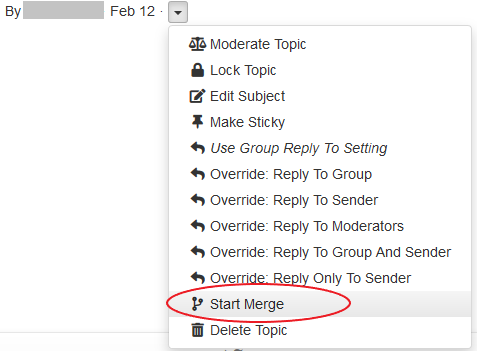
The page is refreshed, and that topic has a vertical blue line to the left of it. - Go to the original topic you want to merge the first topic into, click the arrow button next to the posting date, and select Merge Into.
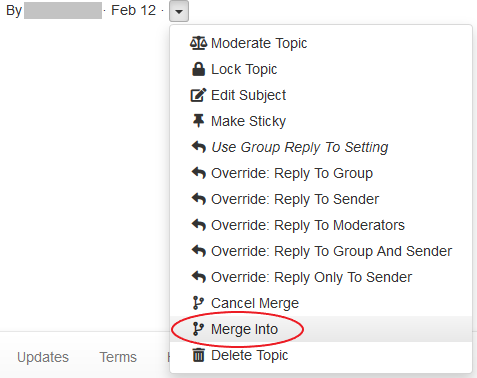
Note: If you change your mind about merging these topics, you can select Cancel Merge on the submenu. - When the Verify Merge confirmation popup appears, click Yes. The first topic you selected is merged into the original topic.
- Repeat steps 2 through 5 for any other topics you want to merge into the original topic.
Tip: If the original topic is still active, consider putting it on moderation so you (or other moderators) can edit the subject lines of incoming messages before they are posted to the archive (because messages might be replies originating from the “stray” topic that was merged into the original, and the subject lines might be different). You can also consider locking the topic if you do not want members posting more messages to it.
Splitting topics
Groups.io provides the ability for group owners and moderators to split a topic into two separate topics. For example, if replies have gotten off track from the subject of the original topic, you might want to move those replies into a separate topic of their own (or merge them into a more appropriate existing topic).
To split a topic:
- In the left navigation menu on the group’s website, click Messages. On the resulting page, if the messages are not already displayed in Topics view, click the leftmost button at the top and select Topics.
Tip: You can use the Search button to search for topics. Then, in the search results, click the Tools button and select the Collapse Topics checkbox. The list now shows the topics and the number of messages in each one. - Navigate to the topic you want to split, and expand it to display the messages in that topic.
- Go to the message in that topic that you want to use as the start of the new (split) topic.
- In that message, click the More “hamburger” icon at the lower right. On the submenu, select Split.
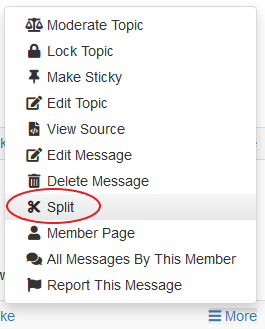
- In the Split Topic popup that appears, enter a subject line for the new topic, then click the Split Topic button. That message is moved into a new topic, along with any messages that were posted after it.
Tip: If the topics are still active, consider putting them on moderation so you (or other moderators) can edit the subject lines of incoming messages before they are posted to the archive, to ensure that the messages end up in the correct topic. You can also consider locking the topics if you do not want members posting more messages to them.
Moderating topics, messages, and attachments
You control whether and how messages are moderated in your group using the spam control settings in your group’s settings. In your group’s message formatting settings, you can control whether attachments to messages are moderated (or allowed at all).
You can also moderate and unmoderate individual topics in your group separately from the overall group moderation settings. For more information, see Editing the properties of topics in the archive.
Another way to moderate and unmoderate topics is to use hashtags that have moderation properties. See Creating and managing hashtags.
Tip: Groups.io has a setting that allows groups to automatically moderate topics that are older than a specified number of days. You might consider using this setting so moderators can review any replies that are posted to outdated topics. See Automatically Moderate Topics Older Than [n] Days.
Locking topics
After a topic has run its course (or if it has grown contentious and nothing further can be gained by keeping it going), but you want to keep it available in the message archive, you can prevent further replies from being posted to that topic by locking it. Members who send replies to a locked topic receive an automatic notice that the topic is locked.
For information on locking and unlocking topics, see Editing the properties of topics in the archive.
Another way to lock topics is to use hashtags that have locking properties. See Creating and managing hashtags.
Tip: Groups.io has a setting that allows groups to automatically lock topics that are older than a specified number of days. You might consider using this setting to prevent members from posting replies to outdated topics. See Automatically Lock Topics Older Than [n] Days.
Editing the properties of topics in the archive
Owners and moderators with the appropriate permissions can edit the properties of topics that have already been posted to the archive on the group’s website. The changes you can make are:
- Edit the subject line of the topic.
- Moderate or unmoderate the topic.
- Lock or unlock the topic.
- Make the topic sticky or unsticky. (Sticky topics always appear at the top of the message archive.)
- Change the Reply To setting for that topic.
You can edit these properties using any of these methods:
- In Topics view or Messages view, click the arrow button next to the posting date, and select the desired option from the submenu that appears.
Note: The submenu contains fewer options in Messages view. - When the topic is open on the website, you have these options:
- Click the More “hamburger” icon at the lower right and select the desired option from the submenu that appears.
Note: You cannot edit the subject line or change the Reply To setting from that submenu. - Click the Topic Properties button at the top of the page, or click the More “hamburger” icon at the lower right and select Topic Properties. On the page that appears, you can change any of the properties listed above (you can also delete the topic). Click the Update button when you are done.
Editing the content of messages in the archive
Owners and moderators with the appropriate permissions can edit the content of all messages that are in the message archive on the group’s website.
Note: To edit messages before they are delivered by email and posted to the archive, you need to use some form of moderation on members or messages.
If you need to edit the content of a message that has already been posted to the group:
- In the left navigation menu on the group’s website, click Messages. If the resulting page displays messages in:
- Topics view: Click the leftmost button at the top and select Messages. Then go to step 2.
- Messages view: Go to step 2.
- Navigate to and open the message you want to edit.
- Click the More “hamburger” icon at the lower right and select Edit Message from the submenu that appears.
- On the Edit Message page that appears:
- Make your edits to the body of the message.
- In the field after the message body, add a brief note about the change.
Note: This note is optional but recommended so the reason for the change is documented. The note appears in the edited message if you choose to send it to the group by email. The note also can be viewed by members who click the Edited badge that appears next to edited messages on the group's website.
- Click the appropriate button:
- Save and Send to Group: Use this button if you want to send the edited message to the group by email. The message will include a statement that the message was edited along with the reason you entered.
- Save Without Sending: Use this button if you want to just save the edited message in the archive without emailing it to group members.
The message is sent or saved, according to the action that you took. In the archive, a blue Edited badge appears next to the message, at the far right under the original timestamp. All group members can click that badge to see the message’s history and compare revisions (if desired).
Deleting topics
- On your group’s left navigation menu, click Messages. If the resulting page displays messages in:
- Topics view: Go to step 2.
- Messages view: Click the leftmost button at the top and select Topics. Then go to step 2.
- Navigate to the topic you want to delete.
- Click the arrow next to the topic’s posting date, and select Delete Topic from the submenu that appears.
- When the Verify Delete confirmation popup appears, click Yes.
Note: You can also delete a topic that is open on the website. While you are viewing the topic, click the Topic Properties button at the top of the page, or click the More “hamburger” icon at the lower right and select Topic Properties. On the page that appears, click the Delete Topic button at the bottom and then click Yes in the Verify Delete confirmation popup.
Sending and receiving group owner email messages
Overview
Each group in Groups.io has an owner email address, which is in this form: [groupname]+owner@groups.io
Example: GroupManagersForum+owner@groups.io
The owner email address and other group email addresses are listed at the bottom of the group’s home page.
Messages that are sent to the owner email address include automatic notices about pending group members and pending messages that need approval.
Owners and moderators have subscription options to control whether they receive messages that are sent to the owner address. Owners can set these options for moderators and other owners that they add to the group (see Making a member an owner or moderator), but moderators and other owners can change their individual subscription options.
Reviewing subscription options for receiving group owner email messages
To review (and adjust, if necessary) your subscription options for receiving owner emails:
- On your group’s left navigation menu, select Subscription.
- On your subscription page, scroll down to the Owner Email section.
Note: This section appears only for owners and moderators. - Ensure that the appropriate option is selected:
- All Emails: You will receive all email messages that are sent to the owner email address, including from nonmembers and possible spammers.
Note: If your group uses a Pending Subscription notice, at least one owner or moderator should select the All Emails option. - Members Only: You will receive only email messages that are sent by group members to the owner email address. This setting is the default.
- None: You will not receive any email messages sent to the owner email address.
- If you made any changes, click the Save button.
Be aware that all moderators and owners who select the All Emails option or the Subscribers Only option will receive email messages that are sent to the group owner email address. If your group has several moderators, not all of them might need (or want) to receive owner emails; in that case, some of them could select the None option.
Receiving and viewing messages sent to the owner email address
Email messages sent to the group owner email address are delivered to the email addresses that the owners and moderators who receive owner emails use to log in to the group.
On the group’s website, you can use any of these methods to view messages that were sent to the owner email address:
- Review the group’s activity log: Select Admin > Activity. In the Actions list on the Activity page, scroll down to and select Message to +owner. Then click Search to display a list of messages that have been sent to the owner email address.
- Display your own member record from the member list, and click the +owner Messages button to list all messages that have been sent to the owner email address.
- Display a member’s record from the member list, and click the +owner Messages button to list any messages that member has sent to the owner email address.
Sending messages from the owner email address
If you want to send a message to a member or members that comes from the group owner email address rather than your personal email address, you can do so from the group's website:
Note: You cannot send messages from the owner email address through email.
- On your group’s left navigation menu, select Admin > Members.
- On the Members page, select the checkbox in the row of the member you want to send the message to. You can select more than one member.
- Go to the bottom of the page and click the Actions button, then select Send Message. The Post page appears.
- In the From list, ensure that the owner email address is shown. (The other option in the list is your personal email address.)
- Use one of these methods to compose the message:
- Complete the Subject field, and enter the body of the message.
- If your group has a Note To Member notice set up (or more than one), use the Notices list to select the Note To Member notice you want to send. The notice’s subject is added to the Subject field, and the content of the notice is added to the message body. You can customize the subject and the message body for this one-time use if desired. (The customizations are not saved to the notice.)
- If you want to send blind copies of the message to your personal email address or the other moderators (or both), select the applicable checkbox.
- Click the Send To Member button. (It is labeled Send To Members if you are sending the message to more than one member.) You return to the group’s home page, where a banner states that the message has been sent.
Note: Messages sent this way will have the group’s message footer. Also, be aware that any replies the member sends will go to all owners and moderators who receive messages sent to the owner email address.
Managing hashtags
Overview
A hashtag is a word or phrase that contains no spaces and is prefixed with the hash (or pound or number sign) character, #. Members “tag” a message with a hashtag by including it somewhere in the message’s subject line.
Examples:
- My name is Inigo Montoya #intro
- Seeking #advice for a #rosebush with blackened leaves
Note: The hashtag limit is five per topic.
Hashtag uses
Hashtags have several uses within Groups.io, including controlling certain behaviors of topics and messages.
For more information on the specific hashtag settings mentioned in the topics that follow, see Creating a hashtag.
Searching
Group members can search on hashtags to easily find all messages tagged with them.
Example: If a group uses a hashtag called #intro for new member introductions, clicking on #intro in the hashtag list displays a list of all messages in which new group members have introduced themselves.
Muting
Group members who read their messages via email can click Mute for any hashtag at the bottom of the email message to stop receiving messages tagged with that hashtag.
Note: Hashtags set to Special cannot be muted.
Setting automatic topic timeouts
If a hashtag’s Topic Duration is set, topics tagged with it will be deleted (or, if specified, locked) after that period of time. This feature can be useful when a topic will be obsolete after a certain amount of time (for example, messages about items for sale).
Sending messages as special notices
When a hashtag is set to Special, all messages tagged with it, including the original message in the topic and all replies, are sent as special notices.
Note: Hashtags set to Special cannot be muted. Also, only moderators and owners can send special notices. If a regular member replies, their message is sent as a normal message.
Posting messages only on the website (not through email)
When a hashtag is set to No Email, all messages tagged with it are posted to the website but not sent out as email messages.
Moderating messages
When a hashtag is set to Moderated, messages sent to topics tagged with it require approval by a moderator.
Unmoderating replies to topics
When a hashtag is set to Replies Unmoderated, replies to topics that are tagged with it will be unmoderated, even if members who reply are moderated or the group itself is moderated.
Locking topics on creation
When a hashtag is set to Locked, topics tagged with it are locked upon creation.
Overriding the group’s Reply To option
Setting a hashtag’s Reply To option to a setting other than Same as Group overrides the group's Reply To setting.
Note: If a hashtag is set to Reply Only To Sender, all responses go privately to the sender and not to the group. This setting overrides the group setting Remove Other Reply Options in a group that is set to Reply to Sender.
Controlling the use and creation of hashtags
Overview
You can control the use and creation of hashtags through various means:
Group hashtag settings
Group hashtag settings are in the Message Policies section on the group’s Settings page. These settings are:
- Hashtags Required: Specifies whether messages must have at least one hashtag.
- Hashtag Permissions: Controls whether group members can create new hashtags by adding them to message subject lines.
Moderator hashtag permissions
The setting that allows moderators to create and modify hashtags is Create or Modify Hashtags, which is in the Moderator Permissions section on a moderator’s member page. See Making a member an owner or moderator.
Usage settings on individual hashtags
When you create a hashtag, you can specify whether it can be used only by moderators by selecting the Use by Use by Mods Only setting. When you select this setting, you can select an additional setting, Replies by Mods Only, so that only moderators can reply to messages that have that hashtag.
Viewing, creating, modifying, and deleting hashtags
Viewing the list of hashtags used in a group
If a group uses hashtags, members can view the list of hashtags on the group’s website using either of these methods:
- In the left navigation menu, select Hashtags.
- In Topics view or Messages view, click the Hashtags button at the top of the page.
Note: Clicking a hashtag displays a page containing all the messages that are tagged with that hashtag.
Creating a hashtag
- On your group’s left navigation menu, select Hashtags.
- On the Hashtags page, click the Create Hashtag button at the bottom of the page (you will have to scroll if the group already contains a number of hashtags).
- On the Create Hashtags page, complete the fields and selections:
Field or selection | Description |
Hashtag | Enter the hashtag name, including the # character at the beginning. |
Alias | When you select an existing hashtag from this list, topics that are tagged with it will be retagged with the hashtag you are creating. Note: When you select an alias, the page is refreshed and the other hashtag settings disappear because the alias will point to the hashtag you are creating and, therefore, have that hashtag’s settings. The alias cannot have its own settings. Aliases are useful when, for example, the group has more than one hashtag that is similar (such as a singular version and a plural version), or an existing hashtag is misspelled, and you want to consolidate topics under one version of the hashtag. New messages that are posted with the alias will be tagged with the hashtag you are creating. |
Description | (Optional) Enter a brief description of the hashtag. This description appears on the Hashtags page, in the list displayed by the Hashtags button, and in the Add Tags list on the New Topic page. |
Topic Duration | If you want to delete or lock topics tagged with this hashtag after a specific period of time, select the applicable option from the list. |
Lock Topic | Select this checkbox to lock topics, rather than delete them, after the time period you selected under Topic Duration. |
Tag Color | Select a color to associate with the hashtag; the default is green. The hashtag will be displayed in this color in the message archive. You can use colors to categorize hashtags, to help distinguish them visually on the group’s website. |
No Email | Select this checkbox if you do not want messages tagged with this hashtag to be emailed to group members. The messages will be posted only in the archive on the group’s website. |
Special | Select this checkbox if you want messages tagged with this hashtag to be sent to group members as special notices. |
Moderated | Select this checkbox if you want messages tagged with this hashtag to be moderated. |
Replies Unmoderated | Select this checkbox if you do not want to moderate replies to messages tagged with this hashtag. |
Locked | Select this checkbox to immediately lock topics that are created with this hashtag. |
Reply To | If you want to apply a Reply To setting to this hashtag that is different from the group’s Reply to setting, select that setting from the list. |
Use by Mods Only | Select this checkbox if you want to restrict the use of this hashtag to moderators only. This feature is useful for sending administrative notices, for example. Hashtags with this setting appear in the Add Tags list only when a moderator is creating the topic. |
Replies by Mods Only | This checkbox appears after you select Use by Mods Only. Select this checkbox if you want only moderators to be able to reply to topics tagged with this hashtag. |
- At the bottom of the page, click the Create Hashtag button.
Modifying a hashtag
- On your group’s left navigation menu, select Hashtags.
- On the Hashtags page, locate the tag you want to modify, and click the Edit button.
- On the Edit Hashtags page, change the desired fields and selections (see Creating a hashtag).
- At the bottom of the page, click the Update Hashtag button. The changes are applied to all topics that are tagged with the hashtag you modified.
Deleting a hashtag
- On your group’s left navigation menu, select Hashtags.
- On the Hashtags page, locate the tag you want to delete, and click the Edit button.
- At the bottom of the Edit Hashtags page, click the Delete Hashtag button.
- When the Verify Delete confirmation popup appears, click Yes. The hashtag is deleted from the group and removed from all topics that were tagged with it.
Note: Any aliases that pointed to the hashtag are deleted as well.
Applying hashtags to topics
Applying hashtags to new topics
When members are creating topics on the group's website, they can apply existing hashtags by selecting the hashtags from the Add Tags list that appears below the subject line on the Create Topic page.
In email messages, members can simply enter hashtags in the subject line. If a hashtag in the subject line does not already exist in the group, it is created (if members are allowed to create hashtags).
Note:
- Hashtags take effect only if they are placed on the first message in a topic, and they will be applied to all messages in the topic.
- It is possible for members to add a hashtag to an emailed reply by editing the subject line, but this addition has no effect. The hashtag will be included in the reply’s subject line for members receiving messages through email, but it will not be included in the subject line of the archived message or of any other messages within the topic.
The hashtag limit is five per topic.
Applying hashtags to existing topics
Group owners and moderators can apply hashtags to existing topics:
- On your group’s left navigation menu, click Messages. If the resulting page displays messages in:
- Topics view: Go to step 2.
- Messages view: Click the leftmost button at the top and select Topics. Then go to step 2.
- Narrow the list of topics by using the Search button to search for topics by keyword.
- In the search results, click the Tools button, then select the Collapse Topics checkbox. The list now shows the number of messages in each topic.
- Review the list of topics for a topic you want to tag, and click its link to display that topic.
Tip: Use your browser’s feature to open the link in a new tab or a new window, which will preserve your list of search results for you to continue reviewing. - At the top of the first message in the topic, click the Topic Properties button (or, at the end of that message, click the More “hamburger” icon to display a submenu, and select Topic Properties). A page with the topic’s properties appears.
- Under the Subject field, from the Add Tags list, select the hashtag you want to apply.
- Repeat step 6 for any additional hashtags you want to apply, up to the limit of five.
- Click the Update button at the bottom of the page. The hashtag is applied to the topic.
- If you opened the topic in a new browser tab or window, close that tab or window.
- Repeat steps 4 through 9 for any additional topics you want to apply hashtags to.
How hashtags are displayed in the group archive
To make hashtags stand out better in the archive, any hashtags placed at the beginning or in the middle of a message’s subject line are duplicated at the end of the subject line, using whatever background color was chosen for the hashtag.
Example: A subject entered as “Seeking #advice for a #rosebush with blackened leaves” would be displayed in the archive as “Seeking #advice for a #rosebush with blackened leaves #advice #rosebush.”
System hashtags
The system automatically adds these hashtags to certain notification messages:
Hashtag | Associated notification message |
#cal-cancelled | A calendar event was cancelled |
#cal-invite | Invitation to a calendar event |
#cal-notice | A calendar event is happening |
#cal-reminder | Reminder of a calendar event |
#cal-summary | Calendar event summary Note: This feature is available only in Premium and Enterprise groups. |
#chat | A new chat was created |
#donation-request | A new donation request was created Note: This feature is available only in Premium and Enterprise groups. |
#guidelines | The Group Guidelines notice, if one is set up for the group and is sent out automatically |
#poll | A new poll was created |
Pinning topics and wiki pages to the Topics page
Overview
You can pin topics and wiki pages to the top of the Topics page (that is, make them “sticky”) to make it easy for group members to see information that you want to be prominent when they view the Topics page on the group’s website. For example, you might have a topic with important information, or a wiki page with frequently asked questions, that you want group members to be able to see easily on the Topics page.
Pinning a topic
- On the group’s website, take one of these actions:
- Open the topic you want to make sticky, and, at the bottom right of the topic, click the More “hamburger” icon.
- Display messages in Topics view, and, at the bottom right of the topic you want to pin, click the down arrow button next to the topic’s posting date.
- From the resulting menu, select Make Sticky. You return to the Messages page, and that topic is listed at the top with a pushpin icon next to its subject line.
To unpin a topic, follow step 1 above, then select Unstick from the menu.
Pinning a wiki page
- In the left navigation menu on the group’s website, select Admin > Settings.
- On the Settings page, scroll down to the Features > Wiki section.
- From the Sticky Wiki Page list, select the wiki page that you want to pin to the top of the Topics page.
Note: The page must exist. You cannot create a new wiki page from here. - Go to the bottom of the Settings page and click the Update Group button. A banner at the top of the page confirms that your changes have been saved. On the Topics page, the first few lines of the wiki page appear at the top. (Members can click the Read More link to see the full page.)
To unpin a wiki page, follow the steps above and, in step 3, select (no page) from the Sticky Wiki Page list.
Reviewing the group’s activity log
Displaying the activity log
Groups.io records all activity that occurs in the group in an activity log. Group owners and moderators can use the activity log to review various types of group activity, research email delivery errors, and so on.
To display the activity log, select Admin > Activity in the left navigation menu on the group’s website.
The resulting Activity page lists all actions that have occurred in your group to date. You can refine the list of actions using these methods:
- In the Actions list at the top of the page, select a specific action, then click the Search button.
Note: You can further filter the results of the Actions list selection by also entering a keyword in the Search field or selecting a date range from the Date list. - For these categories, click a button at the top of the page to display actions pertaining to that category:
- Message Activity
- Member Activity
- Moderator Activity
- Payment Activity
Note: The Payment Activity button is enabled only in Premium and Enterprise groups.
Reviewing message activity
On the Activity page, click the Message Activity button to display a list of the message-related actions that have occurred in the group. This button also filters the Actions list so it includes only the actions that are related to message activity.
Reviewing member activity
On the Activity page, click the Member Activity button to display a list of the member-related actions that have occurred in the group. This button also filters the Actions list so it includes only the actions that are related to member activity.
Reviewing moderator activity
On the Activity page, click the Moderator Activity button to display a list of actions that owners and moderators have taken in the group. This button also filters the Actions list so it includes only the actions that are related to owner and moderator activity.
Reviewing activity related to other group features
Calendar activity
The Activity page does not contain a specific button that displays only calendar-related actions. But you can select these items from the Actions list to see activity related to your group’s calendar:
- Added event
- Added repeating event
- Deleted event
- Deleted following repeated event
- Deleted repeating event
- Modified event
- Modified repeating event
- No permission to add a calendar event
- RSVP Maybe
- RSVP No
- RSVP Yes
Database activity
The Activity page does not contain a specific button that displays only database-related actions. But you can select these items from the Actions list to see activity related to databases in your group:
- Added row
- Added table
- Deleted row
- Deleted table
- Modified row
- Modified table
File activity
The Activity page does not contain a specific button that displays only file-related actions. But you can select these items from the Actions list to see activity related to your group’s Files section:
- Added file
- Attempted add of a file with a virus
- Deleted file
- Modified file
- Moved file
Photo activity
The Activity page does not contain a specific button that displays only photo-related actions. But you can select these items from the Actions list to see activity related to your group’s Photos section:
- Added photo
- Added photo album
- Deleted photo
- Deleted photo album
- Edited photo
- Edited photo album
- Rotated photo
Wiki activity
The Activity page does not contain a specific button that displays only wiki-related actions. But you can select these items from the Actions list to see activity related to your group’s wiki:
- Added image to wiki
- Added wiki page
- Deleted image from wiki
- Deleted wiki revision
- Deleted wiki page
- Modified wiki page
Tip: For additional information and advice on monitoring activity in your group’s wiki, see the wiki in the GroupManagersForum group.
Viewing and managing your group’s storage space
Allotted storage space by plan type
- Basic plans: 1GB
- Premium plans: 20GB
- Enterprise plans: 1TB
Items that count towards the storage limit
These items are counted towards your group’s storage limit:
- Files
- Photos
- Images in databases
- Images on wiki pages
- Message attachments
Note: The contents of messages (message bodies) are not counted towards the storage limit. Only attachments are counted.
Items that do not count towards the storage limit
These items are not counted towards your group’s storage limit:
- Message contents (message bodies)
- Wiki pages
- Database tables
- Chats
- Polls
Viewing your group’s storage limit and current space usage
- On your group’s left navigation menu, click Admin to display the submenu.
- Select the applicable item in the submenu. If your group is a:
- Basic group: Select Upgrade.
- Premium or Enterprise group: Select Billing.
The resulting Billing page shows your plan, its storage limit, and the amount of storage space your group is currently using.
Managing your group’s storage space
When a group reaches 80% of its storage limit, Groups.io sends a warning notification to the group owner and to moderators who have opted to receive email notifications when the storage limit is reached.
You can configure your group to either bounce messages with attachments when the storage limit is reached or automatically delete old attachments to keep the group under the storage limit. See the Storage Limit Reached setting, which is under Admin > Settings > Message Policies.
Note: Photos and files are never automatically deleted.
Other settings that you can use to help manage your group’s storage space are:
- Admin > Settings > Features > Databases > Max Image Size In Databases
- Admin > Settings > Features > Photos > Max Size In Photos Section
- Admin > Settings > Features > Wiki > Max Image Size on Wiki Pages
Managing integrations with outside services
Overview
Groups.io provides an Integrations feature that allows you to connect your group with outside services. Group integrations allow outside content to be sent automatically to your group. These integrations are configured by owners and moderators and are not controlled by group members.
Group integrations can be moderated, which means that any integration messages must be approved before they are sent to the group.
The available group integration options are:
Note: Basic groups are limited to a maximum of five integrations. Premium and Enterprise groups can have an unlimited number of integrations.
Email integrations
Overview
Email integrations allow you to create email addresses that you can use outside of Groups.io to send messages to your group. For example, suppose a web service has a function to email notifications about a subject that would be of interest to your group, and you would like those notifications to be posted to the group. Instead of providing the group email address to that service, which would require you to allow nonmembers to post to it, you can add an email integration that creates a unique email address to be used by that particular service and then provide that email address to the service.
Adding an email integration
- On your group’s left navigation menu, select Admin > Integrations. The Group Integrations page appears.
- In the Email Integration section, click the button that is displayed:
- If no other email integrations exist, the button is labeled Email Integration. Clicking this button takes you directly to the Add Email Integration page.
- If one or more email integrations exist, the button is labeled Edit Email Integrations. Clicking this button takes you to the Your Email Addresses page. On that page, click the Add an Email Address button to display the Add Email Integration page.
- Complete the Add Email Integration page:
- Name: Enter a name that identifies the email address.
- Hashtags: Enter any hashtags (up to five) that you want to apply to the subject lines of the email messages sent to this address (which will be posted to the group). An #email hashtag is provided by default.
- Moderate: Select this checkbox if you want to moderate the email messages sent to this address (which will be posted to the group).
- Click the Add button at the bottom of the page. Groups.io generates a unique email address with the name you specified at the beginning of it, and adds that email address to the Your Email Addresses page.
You can then provide that email address to the outside service. Email messages sent to that address will be posted to the group.
Modifying an email integration
- On your group’s left navigation menu, select Admin > Integrations. The Group Integrations page appears.
- In the Email Integration section, click the Edit Email Integrations button. The Your Email Addresses page appears.
- Click the link in the Title column for the email integration you want to modify. The Update Email Integration page appears.
- As desired, modify the Name field, the Hashtags field, and/or the Moderate selection.
- Click the Update button at the bottom of the page. Groups.io updates the email integration and returns to the Your Email Addresses page.
Deleting an email integration
- On your group’s left navigation menu, select Admin > Integrations. The Group Integrations page appears.
- In the Feed Integration section, click the Edit Email Integrations button. The Your Email Addresses page appears.
- Select the checkbox for the email integration you want to delete. You can select more than one if you want to delete multiple email integrations.
- Click the Delete Email Addresses button at the bottom of the page.
- When the Verify Delete confirmation popup appears, click Yes. The email integration is removed from the Your Email Addresses page.
Feed integrations
Overview
Feed integrations allow you to post items from RSS feeds to your group. For example, if a blog is associated with your group, you can add a feed integration to have new blog posts sent to your group automatically.
Note:
- Groups.io polls RSS feeds every 30 minutes, at 5 minutes after and 35 minutes after the hour.
- You can add RSS feeds from other Groups.io groups if those groups have public archives.
Adding a feed integration
- On your group's left navigation menu, select Admin > Integrations. The Group Integrations page appears.
- In the Feed Integration section, click the button that is displayed:
- If no other feed integrations exist, the button is labeled Feed Integration. Clicking this button takes you directly to the Add Feed Integration page.
- If one or more feed integrations exist, the button is labeled Edit Feed Subscriptions. Clicking this button takes you to the Your Feeds page, which lists the existing feed integrations. Click the Add a Feed button to display the Add Feed Integration page.
- Complete the Add Feed Integration page:
- Feed URL: Enter the URL of the RSS feed.
- Hashtags: Enter any hashtags (up to five) that you want to apply to the subject lines of the feed posts that are emailed to the group. A #feed hashtag is provided by default.
- Moderate: Select this checkbox if you want to moderate the feed posts that are emailed to the group.
- Click the Add button at the bottom of the page. Groups.io verifies the feed and adds it to the Your Feeds page.
Modifying a feed integration
- On your group's left navigation menu, select Admin > Integrations. The Group Integrations page appears.
- In the Feed Integration section, click the Edit Feed Subscriptions button. The Your Feeds page appears.
- Click the link in the Title column for the feed integration you want to modify. The Update Feed Integration page appears.
- As desired, modify the Name field, the Hashtags field, and/or the Moderate selection.
Note: You cannot change the feed’s URL on this page. If you need to change the URL, you must delete this feed integration and add a new one with the revised URL. - Click the Update button at the bottom of the page. Groups.io updates the feed integration and returns to the Your Feeds page.
Deleting a feed integration
- On your group's left navigation menu, select Admin > Integrations. The Group Integrations page appears.
- In the Feed Integration section, click the Edit Feed Subscriptions button. The Your Feeds page appears.
- Select the checkbox for the feed integration you want to delete. You can select more than one if you want to delete multiple feed integrations.
- Click the Delete Feeds button at the bottom of the page.
- When the Verify Delete confirmation popup appears, click Yes. The feed integration is removed from the Your Feeds page.
GitHub integrations
Overview
You can set up a GitHub integration to send notifications to your group when code is committed to a GitHub repository.
Adding a GitHub integration
- On your group's left navigation menu, select Admin > Integrations. The Group Integrations page appears.
- In the Feed Integration section, click the button that is displayed:
- If no other GitHub integrations exist, the button is labeled GitHub Integrations. Clicking this button takes you directly to the Add GitHub Integration page.
- If one or more GitHub integrations exist, the button is labeled Edit GitHub Integrations. Clicking this button takes you to the GitHub Integrations page that lists the existing integrations. Click the Add A Repository button to display the Add GitHub Integration page.
- On the next page, click the Authenticate With GitHub button and sign in to your GitHub account. After you sign in, you are returned to Groups.io.
- Complete the Add GitHub Integration page.
- Click the Add button at the bottom of the Add GitHub Integration page. Groups.io verifies the repository and adds it to the GitHub Integrations page.
Modifying a GitHub integration
- On your group's left navigation menu, select Admin > Integrations. The Group Integrations page appears.
- In the GitHub Integration section, click the Edit GitHub Integrations button.
- On the Edit GitHub Integrations page, click the link to the integration you want to modify.
- Sign in to GitHub, then make your changes on the Edit GitHub Integration page.
- Click the Update button at the bottom of the Edit GitHub Integration page. Groups.io updates the integration and returns to the GitHub Integrations page.
Deleting a GitHub integration[b]
- On your group's left navigation menu, select Admin > Integrations. The Group Integrations page appears.
- In the GitHub Integration section, click the Edit GitHub Integrations button.
- On the GitHub Integrations page, select the checkbox for the integration you want to delete. You can select more than one if you want to delete multiple GitHub integrations.
- Click the Delete Repositories button at the bottom of the page.
- When the Verify Delete confirmation popup appears, click Yes. The integration is removed from the GitHub Integrations page.
Trello integrations
Overview
You can set up Trello integrations to send notifications to your group when activity occurs in Trello boards.
Adding a Trello integration
- On your group's left navigation menu, select Admin > Integrations. The Group Integrations page appears.
- In the Trello Integration section, click the button that is displayed:
- If no other GitHub integrations exist, the button is labeled Trello Integrations. Clicking this button takes you directly to the Add Trello Integration page.
- If one or more GitHub integrations exist, the button is labeled Edit Trello Integrations. Clicking this button takes you to the Trello Integrations page that lists the existing integrations. Click the Add A Board button to display the Add GitHub Integration page.
- On the next page, click the Authenticate With Trello button and log in to your Trello account. After you log in, you are returned to Groups.io.
- Complete the Add Trello Integration page.
- Click the Add button at the bottom of the Add Trello Integration page. Groups.io verifies the repository and adds it to the GitHub Integrations page.
Modifying a Trello integration
- On your group's left navigation menu, select Admin > Integrations. The Group Integrations page appears.
- In the Trello Integration section, click the Edit Trello Integrations button.
- On the Edit Trello Integrations page, click the link to the integration you want to modify.
- Log in to Trello, then make your changes on the Edit Trello Integration page.
- Click the Update button at the bottom of the Edit TrelloIntegration page. Groups.io updates the integration and returns to the Trello Integrations page.
Deleting a Trello integration[c]
- On your group's left navigation menu, select Admin > Integrations. The Group Integrations page appears.
- In the Trello Integration section, click the Edit Trello Integrations button.
- On the Trello Integrations page, select the checkbox for the integration you want to delete. You can select more than one if you want to delete multiple Trello integrations.
- Click the Delete Boards button at the bottom of the page.
- When the Verify Delete confirmation popup appears, click Yes. The integration is removed from the Trello Integrations page.
Promoting your group
Groups.io provides some tools to help you promote your group. In the left navigation menu on your group’s website, select Admin > Promote to access tools you can use to:
- Promote your group on Facebook and Twitter.
- Send a customized email to your friends with a link to join the group.
- Embed a signup form on a website or blog.
Also, if your group is listed in the public directory of groups, ensure that your group’s title and description include the appropriate keywords to help prospective members find your group easily when they search the directory.
Renaming groups
Considerations
If you want to rename your group, you should try to do it before the group has a large number of members and messages. Consider these effects of renaming a group:
- Members will have to update their email address books to send to the new group email address.
- Members will have to update their browser bookmarks or favorites to the new group URL.
- Groups.io does not parse existing group content for group-related links and update them to the new URL. Therefore, many links to group content in the message archive, on your group’s home page, and in your group’s wiki will likely result in “page not found” messages. The group’s reply-to address and many of the links in group message footers will also be affected.
- Members who have subscribed to the group calendar from their email client or an external calendar (for example, Google) will need to update that subscription because the group calendar’s URL will change.
- Several member notices contain the group name in the subject and message text when they are generated. You will need to manually update those notices.
Renaming a group
- On your group's left navigation menu, select Admin > Settings to display the main Settings page.
- In the General section, change the Group Title and Email Address fields as desired.
- In the Message Formatting section, update the Message Footer and Subject Tag fields to reflect the new name.
- Click the Update Group button at the bottom of the page.
Note:
- It might take some time for the renamed group to function normally because, due to the subdomain addressing used by Groups.io, any change to the root email address has to be propagated through the DNS entries (so the new group URL resolves into an IP address). This process can take several hours.
- Renaming your main group also changes the URL of any associated subgroups.
Deleting a group
- In the left navigation menu on your group’s website, select Admin > Settings to display the main Settings page.
- Scroll to the bottom of the page.
- Look for and click the red Delete Group button on the right-hand side.
- Follow the resulting instructions.
Note: After a group is deleted, its name cannot be reused (unless someone specifically contacts Groups.io support and asks to be able to use the name again).
Exporting or downloading your group’s data
Downloading your group’s member list
- In the left navigation menu on your group’s website, select Admin > Members.
- At the top of the Members page, click the Download button. Groups.io displays a new page that contains the member list in comma-separated value (CSV) format.
- Copy the content on the page and paste it into the application of your choice.
Note: You can also download the member list as part of a group data export.
Exporting your group’s message archive and other group content
- In the left navigation menu on your group’s website, select Admin > Settings.
- At the top of the Settings page, click the Export Group Data button.
- On the Export Group Data page, select the checkboxes for the content you want to export. The options are:
- Group Info
- Member List
- Member Notices
- Messages
- Photos
- Files
- Events
- Databases
- Chats
- Wikis
- Activity Log
- Hashtags
Note: If your group contains subgroups, you can choose to export data from those subgroups as well.
- Click the Export Group Data button at the bottom of the page.
Groups.io gathers the selected data into a compressed zip archive and, generally within 10 minutes, sends you an email message with a link to the data file.
Upgrading a Basic group to a Premium or Enterprise group
If you have a Basic group and you decide you want to upgrade it to a Premium or Enterprise group:
- On your group’s left navigation menu, select Admin > Upgrade.
- On the Billing page that appears, click the View/Change Plan button at the upper right.
- On the Upgrade Plan page that appears, click the Upgrade button next to the plan you want to upgrade to.
- Follow the subsequent instructions.
Features available for Premium and Enterprise groups only
Overview
When you upgrade a Basic group to a Premium or Enterprise group, additional features and settings become available:
- Directly add members
- Edit members’ email addresses
- Confirm members
- View information about past group members
- Request and track RSVPs to events
- Calendar sync
- Calendar invites on join
- Event summary email
- The ability to:
- Lock groups and subgroups
- Ban domains from the group
- Allow members to repost messages
- Take donations from members and review payment activity
- Include a map view in database tables
- Create group aliases
Using subgroups
Overview
Premium and Enterprise groups (and Basic groups that existed before January 15, 2020) can have subgroups. A subgroup is a group within another group. Subgroups have all the functionality of normal groups, but for someone to be a member of a subgroup, that person must first be a member of the parent (primary) group. Also, subgroups are not listed in the public directory of groups.
Once someone is a member of the parent group, they can subscribe directly to the subgroup (if permitted), they can be added directly to the subgroup, or they can ask to join the subgroup (if it is restricted).
You can use subgroups for subsets of your primary group’s membership. For example, an organization could use a subgroup for its board of directors or use several subgroups for different committees. Or you could create subgroups for different subject areas that are related to your primary group. The GroupManagersForum wiki contains additional information on why one might want to use subgroups.
Note: Subgroups cannot contain additional subgroups. Groups.io supports only one level of subgroups.
Creating a subgroup
- On your primary (parent) group’s website, select Subgroups on the left navigation menu.
- On the Subgroups page, click the Create Subgroup button.
- Complete the fields on the Create Subgroup page:
- Subgroup Email Address: Enter the name of your subgroup, up to 34 characters long. This name will appear in the subgroup’s email address and also in the URL of your subgroup on the Groups.io website. The email address has the form [subgroupname]@[groupsubdomain].groups.io. (For more information on subgroup email addresses, see Subdomain addressing in the GroupManagersForum wiki.)
Note: The name cannot contain spaces, plus signs, slashes, periods, or underscores. (Hyphens are allowed.) - Description: Enter a description of your subgroup. This description will be displayed on your subgroup’s home page and on the parent group’s home page (if you choose to list the subgroup there).
- Visibility: This option controls whether your subgroup is listed on your parent group’s home page and whether its message archive is visible to the general public, only to parent group members, or only to subgroup members. Select the option you want to use for your subgroup.
! Important: When you make a message archive private (viewable only by parent group members or subgroup members), you cannot change it later to be publicly viewable. Therefore, at this stage, you should be certain about what visibility you want your subgroup’s message archive to have.
Option | Description |
Subgroup listed in parent group, messages publicly viewable | The subgroup will be listed on the parent group’s home page, and its message archive will be able to be viewed by the general public and by members of the parent group. The contents of subgroup messages will be discoverable by web search engines. |
Subgroup listed in parent group, messages viewable by parent group members | The subgroup will be listed on the parent group’s home page, and its message archive will be able to be viewed by all members of the parent group. Message content in the subgroup will not be discoverable by web search engines. |
Subgroup listed in parent group, messages viewable by subgroup members only | The subgroup will be listed on the parent group’s home page, and the message archive will be able to be viewed only by members of the subgroup. Message content in the subgroup will not be discoverable by web search engines. |
Subgroup not listed in parent group, messages viewable by subgroup members only | The subgroup will not be listed on the parent group’s home page, and its message archive will be able to be viewed only by members of the subgroup. Message content in the subgroup will not be discoverable by web search engines. |
Subgroup not listed in parent group, messages publicly viewable | The subgroup will not be listed on the parent group’s home page, but its message archive will be able to be viewed by the general public and by members of the parent group. Message content in the subgroup will be discoverable by web search engines. |
- Click the Create Subgroup button located at the bottom of the page.
Now you can customize the subgroup’s settings (including adding the subgroup to a category), create member notices, and add members of the parent group to the subgroup (either by inviting them to join or by adding them directly).
Note: If you invite someone to join a subgroup who is not a member of the parent group, they will be added to the parent group automatically when they accept the subgroup invitation.
Using subgroup categories
If your group has a number of subgroups, you can organize the subgroups in categories.
To create a subgroup category:
- On the parent group’s website, in the left navigation menu, select Subgroups.
- On the Subgroups page, click the Categories button.
- On the Subgroup Categories page, click the Add Subgroup Category button.
- Complete the resulting page:
- In the Name field, enter a name for the category.
- In the Description field, enter a description of the category.
- If you want to limit the number of subgroups in this category that group members can belong to, enter that number in the Max Number of Subgroups field. (Leave the default value of 0 if you do not want to limit the number of subgroups in this category that members can belong to.)
- Click the Add button at the bottom of the page.
- Repeat steps 2 through 5 for any more categories you want to add.
On the Subgroup Categories page, you can click a down arrow or up arrow next to a category name to move that category down or up in the list.
To add a subgroup to a category:
- Go to the subgroup’s website.
- In the left navigation menu, select Admin > Settings.
- On the Settings page, scroll to the end of the General section.
- In the Subgroup Category list, select the category you want to assign to the subgroup.
- Scroll to the bottom of the page and click the Update Group button. The next time you view the Subgroups page, the category is listed, enclosed in square brackets, next to the subgroup’s name. Subgroups that are in the same category are listed together.
To modify or delete a subgroup category:
- On the parent group’s website, in the left navigation menu, select Subgroups.
- On the Subgroups page, click the Categories button.
- On the Subgroup Categories page, click the name of the category you want to modify or delete, and take the desired action. To:
- Change the category’s name or edit its description: Make the changes in the applicable field, then click the Update button at the bottom of the page.
- Delete the category: Click the Delete button at the bottom of the page. When the Verify Delete confirmation popup appears, click Yes.
Additional member management options
Adding members directly
In a Premium or Enterprise group, owners and moderators can add members to the group directly, without going through the invitation process.
To add members directly to a group:
- In the left navigation menu on the group’s website, select Admin > Direct Add.
- Complete the Direct Add page:
- The Message To Be Sent section at the top of the page shows the standard text that will be sent to the members who are added. You can use the Customize Message field to add personalized content, which will be added to the text in the Message To Be Sent field after a statement that says “The Group moderators have included the following important message:”.
Note: If you have set up a Direct Add notice for the group, you can select it from the Notices list. The content of that notice will be displayed in the Customize Message field, where you can edit it further if desired. Be aware that any changes you make will not be saved to the Direct Add notice. - If your group includes subgroups, in the Add To Subgroups section of the page, you can select any subgroups you want to add the new member or members to.
- In the Emails section of the page, enter the email addresses of the members you want to add (one address per line). Alternatively, you can click the Browse button to upload a text file that contains the email addresses.
- Click the Add Members button at the bottom of the page.
Editing members’ email addresses
In a Premium or Enterprise group, owners and moderators can change the email addresses of members who cannot change their addresses themselves for some reason:
- Display the membership record of the member whose email address you want to change.
- In the Email field at the top of the page, edit the member’s email address.
- Scroll to the bottom of the page and click Save.
Confirming members who are marked as Not Confirmed
In a Premium or Enterprise group, owners and moderators can confirm members who requested to join the group but have not yet responded to the confirmation message sent by Groups.io. These members are marked with a Not Confirmed  badge in the member list.
To confirm a member who is marked as Not Confirmed:
- Display the membership record of the member whose membership you want to confirm.
- Go to the bottom of the member’s page and click the Confirm button.
Note: In a restricted Premium or Enterprise group, if you approve a pending member who is not yet confirmed, the approval also confirms their membership.
Viewing information about past members
In a Premium or Enterprise group, owners and moderators can view a list of all members who left the group, were removed from the group, and were banned from the group:
- On the group’s left navigation menu, select Admin > Members.
- On the Members page, click the Members button at the top and then select Past from the dropdown menu. The resulting Past Members page lists all members who left the group (unsubscribed) and were removed or banned from the group by a moderator or owner.
In a past member’s row, you can click the History link to display that member’s record, where you can view their activity history, any moderator notes, and any messages that member sent to the owner email address.
Additional calendar options
Requesting and tracking RSVPs to calendar events
In Premium and Enterprise groups, members who are permitted to add calendar events can request and track RSVPs to events and use these additional RSVP features:
- Specify a maximum number of attendees. The group will maintain a wait list.
- Specify whether attendees can bring guests.
- See a directory of people who have responded, and send email messages to only those who replied Yes or No.
- Export a list of attendees.
- Print name tags for attendees, using a variety of Avery templates.
Note: Instructions for these features are in the Groups.io Reference for Group Members.
Automatically sending event invitations to new group members and event cancellations to departing group members
Premium and Enterprise groups can automatically send an iCalendar (ICS) file of all calendar events to new members when they join the group and automatically send an ICS file of event cancellation notifications to members who leave the group.
To turn on this setting:
- On the group’s left navigation menu, select Admin > Settings.
- On the Settings page, scroll down to the Features section.
- Under Calendar, select the Send Invites On Join checkbox.
- Scroll to the bottom of the Settings page, and click the Update Group button.
! Important: The change does not take effect until you click Update Group.
New members who join the group will automatically receive an ICS file of existing events on the group’s calendar that they can add to their own calendars. Also, members who leave the group will automatically receive an ICS file of event cancellation notifications that they can use to remove the group’s calendar events from their own calendars.
Sending calendar event summaries to the group
Premium and Enterprise groups can automatically send a summary of upcoming calendar events (up to 20) to the group at a regular interval:
- On the group’s left navigation menu, select Admin > Settings.
- On the Settings page, scroll down to the Features section.
- Under Calendar:
- Select the Send Event Summaries checkbox.
- From the Summary Email Schedule list, select the interval at which you want the event summary to be sent:
- Weekly on Friday
- Biweekly on Friday
- Monthly
- Scroll to the bottom of the Settings page, and click the Update Group button.
! Important: The changes do not take effect until you click Update Group.
A message containing a summary of up to 20 upcoming group calendar events will be sent to the group at the interval you selected. The message’s subject line will contain the hashtag #cal-summary.
Automatic addition of events from outside calendar invitations
In Premium and Enterprise groups, calendar invitations sent to the group’s email address from outside calendars (such as Google Calendar and Microsoft Outlook) automatically add those events to the group’s calendar.
Example: A group member creates an event in Google Calendar and adds the Groups.io group as a guest. This action generates an email message that is sent to the group with a calendar invitation. Assuming the sender has permission to add group calendar events, Groups.io creates an event in the group’s calendar in addition to sending the calendar invitation email to the group members.
Allowing message reposting
In a Premium or Enterprise group, you can allow members to repost messages to the group and specify the maximum number of times that a message can be reposted. For example, a group that posts classified ads might allow members to repost ads if items are not sold.
To apply the message reposting settings:
- In the left navigation menu on the group’s website, select Admin > Settings to display the main Settings page.
- Scroll down to the Reposting Policies section.
- Select the Allow Reposts Of Messages After [0] Days checkbox.
- Change 0 to the number of days that must elapse before messages can be reposted to the group.
- In the Max Number Of Reposts list, select the option that applies to the number of times you want to allow members to be able repost messages.
Note: Reposted messages are tagged automatically with the #repost hashtag. - Scroll to the bottom of the Settings page and click Update Group.
! Important: The changes do not take effect until you click Update Group.
Taking donations and reviewing payment activity
Overview
Premium and Enterprise groups can set up donation requests to ask their members to donate to the group. Members in groups that have open donation requests will see a Donations entry on the left navigation menu at the group’s website. They can select that entry to view the donation requests and make donations.
Groups.io uses Stripe to accept credit card payments. To accept donations in your group, you need to have a Stripe account (Stripe accounts are free) and connect to it from your group. Then you can create donation requests in your group, and your members can donate using credit cards.
The Groups.io processing fee is 5%, which includes all credit card processing fees.
Note: Members who donate do not need to have Stripe accounts.
Setting up a Stripe account
- In the left navigation menu on the group’s website, select Admin > Donations.
- On the resulting Donations page, click the Connect to Stripe button, which takes you to the Stripe website.
- To set up a new Stripe account for your group, complete the fields on the Stripe page.
Tips:
- Use your group’s name as the account name, legal business name, and in the statement descriptor (for example, “[groupname] Donations”).
- Provide your group’s website (https://groups.io/g/[groupname]) as the business website.
- Add/attach a bank account and set up a Direct Debit, then set up a payment schedule.
- At the bottom of the page, click the Authorize access to this account button. You are then returned to Groups.io.
Creating a donation request
- In the left navigation menu on the group’s website, select Admin > Donations.
- Then what? I don’t have a Stripe account, nor do I want to create one for testing. :-)[d]
The donation request is now open, and members can submit donations.
Closing a donation request
When donations are complete, you can close the donation request:
- In the left navigation menu on the group’s website, select Admin > Donations.
- ???[e]
Reviewing payment activity
- In the left navigation menu on the group’s website, select Admin > Activity.
- On the Activity page, click the Payment Activity button. All activities related to donation requests are listed.
- If you want to filter the payment activity results, select one of these options from the Actions list and click Search:
- Donation request closed
- Donation request reopened
- Donation request updated
- Donation requested
- Member donated
- Member donated failed
- Stripe account disconnected
Locking and unlocking groups and subgroups
Premium and Enterprise groups can lock their group (and any subgroups), which preserves the archive on Groups.io but prevents members from posting messages to it or making changes to any other group content such as files, photos, and databases.
To lock a group or subgroup:
- In the left navigation menu on the group’s or subgroup’s website, select Admin > Settings.
- Scroll to the bottom of the Settings page and click the Lock Group button.
- When the Verify Lock confirmation popup appears, click Yes.
If you decide to unlock the group or subgroup:
- In the left navigation menu on the group’s or subgroup’s website, select Admin > Settings.
- On the Settings page, click the Unlock Group button.
- When the Verify Unlock confirmation popup appears, click Yes.
Banning domains from the group
Premium and Enterprise groups can prevent nonmembers from submitting join requests or sending messages to a group or subgroup by adding domain names to a list of domains that are banned in the group.
To add a domain to the Banned Domains list:
- In the left navigation menu on the group’s or subgroup’s website, select Admin > Domains. The Banned Domains page appears.
- In the Domain to ban field, enter the domain to be banned. Do not include the @ symbol.
- Click the Ban Domain button. The domain is added to the list of banned domains at the top of the page.
Note: Adding the domain name of existing members has no effect on those members. They will still be subject to any group and subgroup posting restrictions that are in place.
To remove a domain from the Banned Domains list:
- In the left navigation menu on the group’s or subgroup’s website, select Admin > Domains.
- In the list of banned domains at the top of page, click the blue x next to the domain that you want to remove from the list.
Including map view in database tables
In Premium and Enterprise groups, database tables that contain an Address column can be viewed as maps in Google Maps.
For a database table to have the map view feature, it must contain a column that has the Address column type—that is, when a member adds the column to their table, they must ensure that they select Address from the Type list. Then, when they add rows to that table and complete the Address column in each row, the map view feature will be available.
Note: Instructions for creating database tables are in the Groups.io Reference for Group Members.
Creating group aliases
Premium and Enterprise groups can create aliases for their group that members can use in place of the name assigned to the group when it was created. For example, an alias might be easier than the actual group name for some group members to remember. If your group’s members tend to use variations of the group’s name, you can create aliases for the variations (if the aliases are not already used by other groups). Those aliases would then take members to the main group’s website at Groups.io, and members could also use the aliases to send email messages to the group.
Group aliases could include different forms of the group’s name, such as:
- A singular form or a plural form
- An abbreviated form or an expanded form
- A form that includes hyphens or a form that does not
To create a group alias:
- In the left navigation menu on the group’s website, select Admin > Aliases.
- On the Aliases page, enter an alternate name for your group in the Group Alias field.
Note: As with group names, aliases cannot contain spaces, plus signs, slashes, periods, or underscores (hyphens are allowed), and they are limited to a maximum of 34 characters. - Click the Add Group Alias button. The alias appears at the top of the page.
- Repeat steps 2 and 3 for any other aliases you want to add.
To remove a group alias:
- In the left navigation menu on the group’s or subgroup’s website, select Admin > Aliases.
- In the list of group aliases at the top of the page, click the blue x next to the alias that you want to remove.
Features available for Enterprise groups only
Overview
An Enterprise group is a white-labeled version of Groups.io, on a unique domain, with its own logo and, optionally, its own home page. The color scheme is the same as for Groups.io’s website.
Enterprise groups have all of the features that are available to Basic and Premium groups as well as these additional, Enterprise-only features:
You set up these features after upgrading your group to an Enterprise group and receiving a “welcome” email message from Groups.io.
Setting up a custom domain or subdomain
Setting up a custom domain
- Decide which domain you want to use for the group.
Tip: Consider using a subdomain for the group instead of a top-level domain because using a subdomain gives your organization more flexibility. See Setting up a custom subdomain. - Delegate the DNS server settings for the domain to dns1.groups.io and dns2.groups.io.
You must complete this step with the company where your domain is registered. You can use either of these methods:
- Contact your domain registrar’s support department for assistance.
- Do it yourself by logging into your account at your domain registrar and replacing any existing DNS servers with dns1.groups.io and dns2.groups.io. You might be able to find instructions on your domain registrar’s website.
- After the domain’s DNS server settings are changed, contact Groups.io support and provide:
- The name of the Enterprise group
- The domain name
Groups.io support then takes the necessary steps to complete the domain setup.
Setting up a custom subdomain
Groups.io typically recommends that an Enterprise group use a subdomain for the group instead of a top-level domain (for example, groups.example.com rather than example.com). Using a subdomain for the group gives your organization more flexibility because you can continue hosting the top-level domain with your current provider, leaving any existing content in place.
To set up a custom subdomain:
- Decide which subdomain you want to use for the group.
- Contact your domain registrar and ask for their assistance (or look for instructions on their website) in adding two name server (NS) record settings for the subdomain. The NS records should look like these examples:
- groups.example.com in NS dns1.groups.io
- groups.example.com in NS dns2.groups.com
! Important: Do not change the DNS servers of your top-level domain.
- After the NS records are changed, contact Groups.io support and provide:
- The name of the Enterprise group
- The subdomain name.
Groups.io support then takes the necessary steps to complete the subdomain setup.
Adding a custom logo and custom email header and footer graphics
A custom logo graphic for the group's website must:
- Be in PNG format
- Have a transparent background
- Look good on a dark-colored background
- Have dimensions of 400 pixels wide x 100 pixels high
Enterprise groups can also change the header and footer graphics that appear in digest and summary emails. Those graphics must:
- Be in JPEG format
- For a header, have dimensions of 800 pixels wide x 93 pixels wide
- For a footer, have dimensions of 800 pixels wide x 86 pixels wide
To have a custom logo, header, and footer graphic added to your Enterprise group, email the image files to Groups.io support.
Customizing the home page displayed to users who are not logged in
With an Enterprise group, you can customize the home page that is displayed when someone who is not logged in to the group goes to the group’s URL. If you do not customize this home page, the normal main group home page is used.
To customize this home page:
- Create a wiki page that has the content and format of your desired home page.
Note: Because this page is displayed when someone who is not logged in goes to the group’s domain, it must contain links to the group’s /login page and /register page. - Contact Groups.io support and let them know which wiki page to use as the home page. Groups.io support then changes the applicable setting to display that page as the home page.
Customizing Enterprise group settings
Displaying the Enterprise Settings page
Enterprise groups have an additional entry, Enterprise Settings, on the Admin menu. Select that entry to display a page containing these settings:
- Enterprise Title
- Timezone
- Disable Signup
- Disable +1 Functionality
- Google Analytics Code
- Login Page Text
- No Account Text
- Single Sign On
Note: After you enter or change settings on the Enterprise Settings page, scroll to the bottom of the page and click the Update Settings button.
Enterprise Title
In this field, enter a title for your Enterprise group. This title is used on the group’s website to reference the enterprise.
Timezone
From the list, select the default timezone to use for displaying times on the group’s website. This timezone is applied to the accounts of users who simply register on the Enterprise domain and to those who join the group and register at the same time.
Note: A change to this setting applies only to new members of the group; a change here does not affect existing members.
Disable Signup
Select this checkbox to prevent anyone who is not logged in to the group from registering through the group’s website or accessing any of the group’s web pages.
Disable +1 Functionality
Select this checkbox to disable the automatic conversion of +1 email messages to likes.
Google Analytics Code
If you want to use Google Analytics to collect data from your group’s website, enter the Google Analytics tracking code in this field.
Login Page Text
If you want to replace the standard text provided by Groups.io at the bottom of the login page, enter the replacement text in this field.
No Account Text
If you want to replace the standard text provided by Groups.io on the “send login link” page, enter the replacement text in this field.
Single Sign On
If you are going to use Single Sign On (SSO) for your group, complete the Single Sign On section of the Enterprise Settings page:
- Provider: Select your SSO provider from the list.
- Client ID: Enter the client ID supplied by your SSO provider.
- Client Secret: Enter the client secret supplied by your SSO provider.
- Domain: Enter the domain supplied by your SSO provider.
Note: For the SSO callback URL, use https://groups.io/ssologin.
Additional information
Standard group email addresses
All groups have several standard email addresses to which group members can send empty email messages for different purposes. Through these email addresses, members can join or leave the group or change certain subscription options by email instead of having to go to the group’s website.
! Important: After someone sends a message to most of these email addresses, they receive a confirmation request message from Groups.io. They must respond to that confirmation request to complete the requested action.
Note: Substitute the group’s name for [groupname] in the addresses.
Members use this address: | To: |
[groupname]+subscribe@groups.io | Join a group. |
[groupname]+unsubscribe@groups.io | Leave (unsubscribe from) a group. |
[groupname]+help@groups.io | Receive an email message containing a list of these addresses. Note: A confirmation request message is not sent in this case. |
[groupname]+digest@groups.io | Receive plain-format digests instead of individual messages. |
[groupname]+fulldigest@groups.io | Receive full-featured digests instead of individual messages. |
[groupname]+summary@groups.io | Receive a daily summary instead of individual messages. |
[groupname]+single@groups.io | Receive individual messages instead of a summary or digest. |
[groupname]+special@groups.io | Receive only special notices. |
[groupname]+nomail@groups.io | Stop receiving messages by email (they can still read messages on the group’s website). |
[groupname]+owner@groups.io | Contact the group owners. Note: A confirmation request message is not sent in this case. |
Groups.io bounce handling
When a group message that is sent to a member through email cannot be delivered, the nondelivery event is called a bounce.
Groups.io deals with these types of bounces:
- Soft bounce: Caused by a problem that is expected to resolve itself automatically after some period of time (such as a temporarily unavailable email server)
- Hard bounce: Caused by an issue that would require human intervention to fix (such as an invalid email address or a full inbox)
Sometimes, it is difficult for Groups.io to determine whether a bounce is soft or hard. In this situation, the system treats it as a soft bounce.
Note: Bouncing affects all groups the member is subscribed to through the Groups.io account that the bouncing email address is registered with. Effectively, the member’s Groups.io account is bouncing.
The overall bounce handling process in Groups.io is:
Step 1: On receiving a bounce for the first time, the system tries to determine—through a combination of the type of bounce and the frequency of the bouncing—whether the account is bouncing often enough and seriously enough to require action.
Step 2: If action is required, the system sets the account’s status to Bouncing, stops sending group emails to it, and begins trying to reach the account holder via bounce probe emails (see an example) notifying them that the account is bouncing.
Step 3: If the account holder:
- Responds to one of the bounce probes: The account is taken out of bounce handling and goes back to normal.
- Does not respond to any bounce probes within a certain period of time: The system sets the account’s status to Bounced and stops sending emails of any kind to it.
When an account is Bouncing or Bounced, the system takes these actions:
- Logs entries in the activity logs of all the account’s groups stating that the account is bouncing, to inform group moderators.
- Displays a blue B
 (for a Bouncing account) or a red B
  (for a Bounced account) next to the account’s email address in the member lists of all its groups.
 - Includes the account in the “Bouncing” member lists of its groups. (The account continues to appear in the regular member lists as well.)
The affected members are notified that they are Bouncing or Bounced. They are given a chance to “unbounce” their accounts through a banner that is displayed at the top of the Groups.io site whenever they are logged in.
! Important: Group owners and moderators cannot do anything to “unbounce” members’ accounts. Members must address the underlying problem themselves.
API access and documentation
Groups.io provides an application programming interface (API) that is open to anyone who uses Groups.io. The API is documented at https://groups.io/api. You can also join the api@beta.groups.io group.
! Important: The API is under active development and subject to change.
Resources for help and support
Getting help
If you have questions about using Groups.io, and you did not find the information in this reference, check these additional resources:
- Group_Help: This Groups.io group is open to anyone who has questions about groups.
Note: This group is led by volunteers; it is not officially affiliated with Groups.io. - GroupManagersForum: This Groups.io group discusses members’ experiences as group owners and moderators, shares ideas for promoting and customizing group content areas, and offers techniques and advice for managing groups. In particular, the group’s wiki contains a wealth of information.
Note: This group is led by volunteers; it is not officially affiliated with Groups.io.
Submitting suggestions for new features or improvements
If you have a suggestion for a new Groups.io feature or an improvement to the service, you can join the Groups.io Beta Group. This group discusses the Groups.io service and how it can be improved. Hashtags are required and new topics are moderated. The Beta group is monitored by the Groups.io team.
Reporting bugs
If you encounter a bug, post a message on the Beta group and include the #bug hashtag, or send an email message to support@groups.io. Include as much information as possible to help the Groups.io team reproduce the bug and implement a fix.
Acknowledgements
Much appreciation goes to the dedicated volunteers who devote their time and expertise to responding to questions in the Group_Help and GroupManagersForum groups and to maintaining the wiki in the GroupManagersForum group. Information posted in those groups provided the basis for a significant amount of the content in this reference. Thank you!
Revision history
Version | Date | Author | Notes |
1.0 | dd [month name] 2020 | Nina Eppes | Initial published version. |
Copyright © 2020 Groups.io
[a]New note based on March 7 change log.
[b]In the screenshot of the Edit GitHub Integrations page that you sent, the button at the bottom is labeled "Remove." But the button on the GitHub Integrations page is labeled "Delete Repositories," not "Remove Repositories." So should the button label on the Edit GitHub Integrations page be changed to "Delete," for consistency? (To keep these steps simple, I'm not mentioning deleting integrations from the Edit GitHub Integrations page here; people will figure it out themselves, I'm sure. :-) But the Delete/Remove button labels should be consistent between pages.)
[c]In the screenshot of the Edit Trello Integrations page that you sent, the button at the bottom is labeled "Remove." But the button on the Trello Integrations page is labeled "Delete Boards," not "Remove Boards." So should the button label on the Edit Trello Integrations page be changed to "Delete," for consistency? (To keep these steps simple, I'm not mentioning deleting integrations from the Edit Trello Integrations page here; people will figure it out themselves, I'm sure. :-) But the Delete/Remove button labels should be consistent between pages.)
[d]Can you provide a couple of screenshots to help me fill in the steps?
[e]Can you provide a couple of screenshots to help me fill in the steps?
Comments
0 comments
Please sign in to leave a comment.